Jobs
Jobs are the open roles your team is hiring for. Use the Jobs page to create job postings, publish roles, collect applications, review candidate progress, and manage the hiring workflow for each position.
An ATS (Applicant Tracking System) is software that helps you manage job postings, candidate applications, interviews, and hiring decisions in one place.
What you can do here:
- Create job postings manually or with AI assistance.
- Save jobs as drafts or publish them for candidates.
- Search, filter, sort, and open job records.
- Track application counts, shortlisted candidates, interviews, and offers.
- Add candidates by applying a CV, bulk uploading CVs, or importing existing candidates.
- Configure assessments and AI interview behavior for each job.
- Share or embed published jobs on external websites.
- Generate a sample CV from a job description for testing or workflow setup.
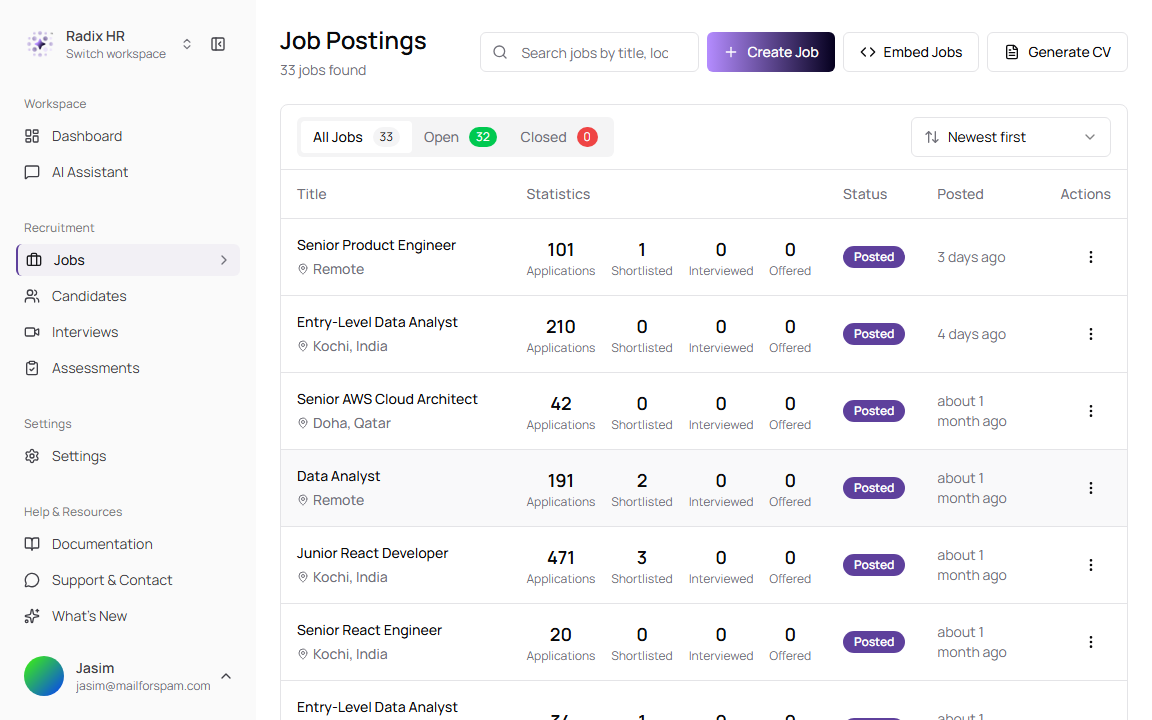
Job List
The Jobs list shows every job posting in the selected company workspace. Use it when you need to find a role, check hiring activity, or open a job to review candidates.
- Go to Jobs from the sidebar.
- Use Search jobs by title, location to find a specific job.
- Use the status tabs to switch between All Jobs, Open, and Closed jobs.
- Use the sort menu to order jobs by Newest first, Oldest first, Title (A-Z), Title (Z-A), or Status.
- Use pagination to move between result pages or change how many jobs appear per page.
- Select a job title to open its details.
Page Controls
| Control | Description |
|---|---|
| Search jobs by title, location | Filters the list by job title or location. |
| Create Job | Opens the job posting form. |
| Embed Jobs | Creates embed code for showing job listings on an external website. |
| Generate CV | Opens a tool that generates a CV from a job description. Use this for testing or demo data, not as a real candidate submission. |
| All Jobs | Shows every job in the workspace. |
| Open | Shows jobs that are currently open for applications. |
| Closed | Shows jobs that no longer accept applications. |
| Sort menu | Changes the order of the list. |
| Pagination | Moves between pages and controls how many jobs are shown per page. |
List Fields
| Field | Description | Required |
|---|---|---|
| Title | The job name shown to your team and candidates. The list also shows the job location below the title. | Yes |
| Statistics | Shows counts for Applications, Shortlisted, Interviewed, and Offered candidates. Use this to understand hiring progress without opening the job. | No |
| Status | Shows whether the job is posted/open or closed. Closed jobs no longer accept new applications. | Yes |
| Posted | Shows when the job was published or last became visible to candidates. | No |
| Actions | Opens row actions such as viewing, editing, sharing, or other job management options. | No |
A shortlist is the group of candidates you select to move forward after reviewing applications.
Job Creation Form
Create a job posting when your team is ready to define a new opening and start collecting candidates.
- Go to Jobs.
- Click Create Job.
- Complete the required Basic Information and Job Description fields.
- Optionally add compensation, requirements, benefits, assessments, and application sources.
- Use Generate with AI if you want TruePick to draft the job details from a natural-language prompt.
- Click Save as Draft if the job is not ready.
- Click Publish Job when candidates should be able to apply.
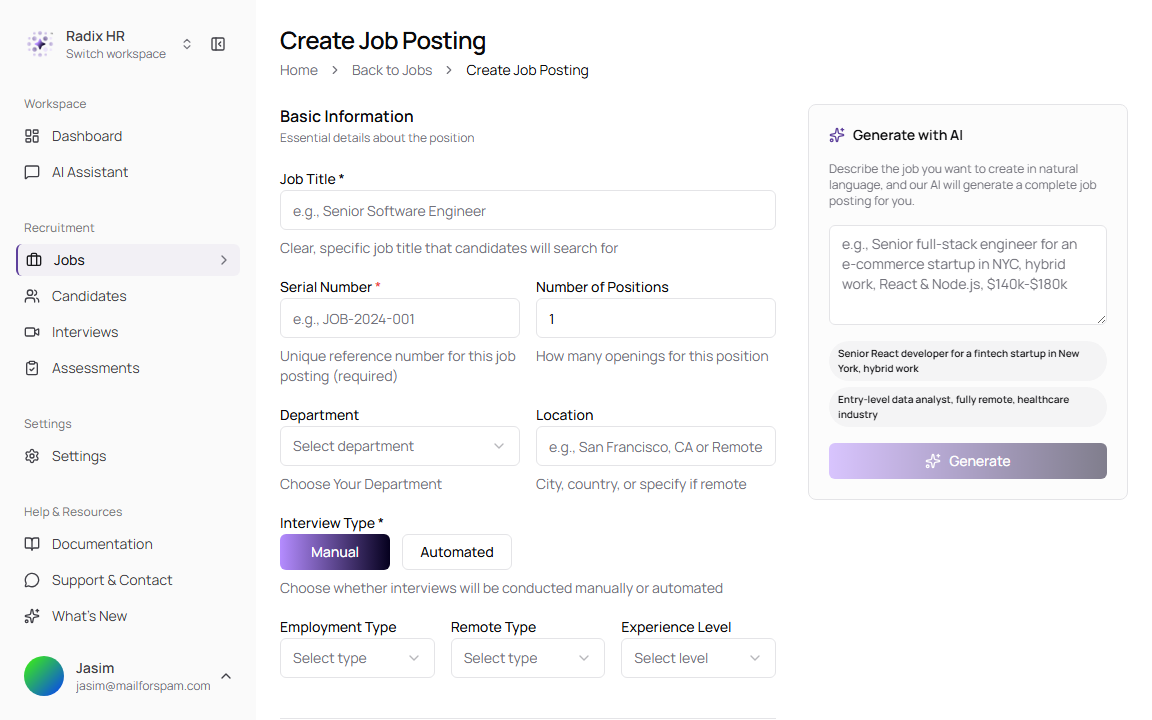
Basic Information
| Field | Description | Required |
|---|---|---|
| Job Title | The role name candidates will see and search for, such as Senior Software Engineer. It must be at least 3 characters and less than 100 characters. | Yes |
| Serial Number | A unique internal reference for the role, such as JOB-2024-001. Use a consistent format so your team can track roles across reports and messages. | Yes |
| Number of Positions | The number of openings for this role. The value must be at least 1. | No |
| Department | The team or function that owns the role. Options include IT / Information Technology, Healthcare, Finance / Accounting, Human Resources, Marketing, Sales, Operations, Engineering, Legal, and Other. | No |
| Custom Department Name | Appears when Department is set to Other. Use it when the department is not in the standard list. | No |
| Location | The city, country, or work location shown to candidates, such as Doha, Qatar or Remote. | No |
| Interview Type | Choose Manual when your team will run interviews directly. Choose Automated when TruePick’s AI interviewer should conduct the first interview. | Yes |
| Employment Type | Classifies the job as Full Time, Part Time, Contract, or Internship. | No |
| Remote Type | Indicates whether the job is Onsite, Remote, or Hybrid. | No |
| Experience Level | Sets the expected seniority: Entry, Mid, Senior, Lead, or Executive. This helps candidates understand fit and helps AI review candidates against the right level. | No |
Compensation
| Field | Description | Required |
|---|---|---|
| Minimum Salary | The lower end of the salary range. Enter numbers only. | No |
| Maximum Salary | The upper end of the salary range. Enter numbers only. | No |
| Currency | The salary currency. The default is QAR. | No |
Add a clear salary range when possible. Transparent compensation helps candidates decide whether the role is a fit before applying.
Job Description
| Field | Description | Required |
|---|---|---|
| Job Description | The full role description shown to candidates. Include responsibilities, team context, growth opportunities, and what makes the role worth applying for. It must be at least 50 characters. | Yes |
| Required Qualifications | Must-have experience, education, certifications, or responsibilities. Enter each requirement on a new line. | No |
| Preferred Qualifications | Nice-to-have skills or experience. Enter each item on a new line. | No |
| Technical Skills | Key skills used for searching and AI candidate review. Enter one skill per line. | No |
| Benefits & Perks | Benefits shown to candidates, such as insurance, learning budget, hybrid work, or bonus details. Enter each item on a new line. | No |
Generate with AI
The Generate with AI panel helps create a draft job posting from a short prompt.
| Field | Description | Required |
|---|---|---|
| Prompt | Describe the role in plain language, such as Senior React developer for a fintech startup in New York, hybrid work. Include role title, seniority, industry, location, remote policy, and important skills. | Yes |
| Generate | Creates draft job details from the prompt. Review all generated fields before saving or publishing. | No |
Configure AI Interviews
If Interview Type is set to Automated, TruePick shows AI interview behavior settings. These settings control how the AI Interviewer, TruePick’s automated interviewer, conducts interviews for candidates applying to this job.
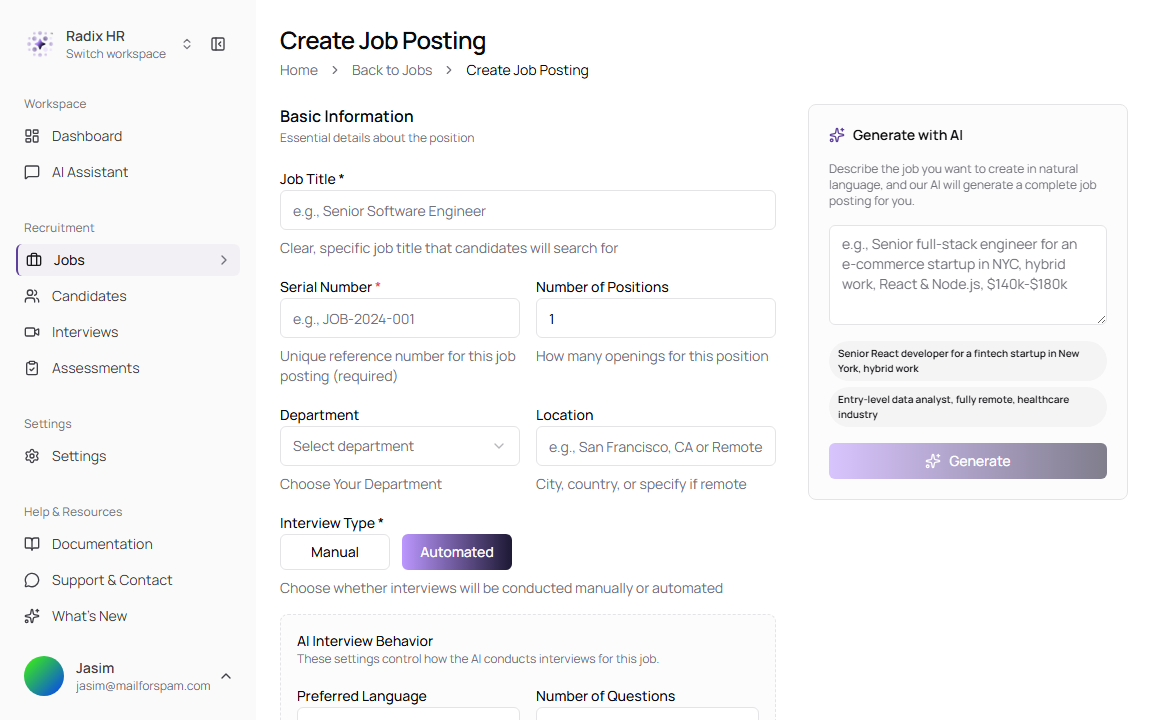
AI Interview Fields
| Field | Description | Required |
|---|---|---|
| Preferred Language | Selects the interview language. Options are English and Arabic. The default is English. | No |
| Number of Questions | Sets how many questions the AI interviewer asks. The value must be between 1 and 50. The default is 5. | No |
| Interviewer Personality | Controls the tone of the AI interview. Options are Formal, Conversational, Technical, and Friendly. The default is Conversational. | No |
| Follow-up Depth | Controls whether the AI asks follow-up questions. Options are No follow-ups, Light, and Deep. The default is Light. | No |
Use Automated only when candidates should complete an AI interview. If your team plans to schedule interviews manually, keep Interview Type set to Manual.
Configure Assessments
An assessment is a test or set of questions sent to candidates to evaluate skills before or during screening.
| Field | Description | Required |
|---|---|---|
| Default Assessment | Selects an assessment that candidates can take for this job. If no assessments exist, create one from Assessments first. | No |
| Expiry Days | Appears after selecting a default assessment. Options are 1 day, 3 days, 7 days, and 30 days. This is how long candidates have to complete the assessment. | No |
| Require assessment on application | When enabled, candidates must complete the assessment before submitting their application. When disabled, the assessment is available but not mandatory at application time. | No |
Configure Application Sources
Application sources control where TruePick should collect applications from for this job.
| Source | Description | Available |
|---|---|---|
| Gmail | Collects and manages candidates directly from Gmail. Turn this on when your team receives applications by email. | Yes |
| Planned source for collecting candidates from LinkedIn. | Coming soon | |
| Planned source for collecting candidates from Twitter. | Coming soon |
Job Details Page
Open a job when you need to review the role details, add candidates, view applicants, or manage publishing actions.
- Go to Jobs.
- Select the job you want to review.
- Use Job Details to review the description, requirements, interview settings, and quick information.
- Use Candidates to review applications for that job.
- Use Add Candidates to upload CVs or import candidates.
- Use Download Report when you need a job-level report.
- Use Share Job or Embed Job to distribute the posting.
- Use Close Job when the role should stop accepting applications.
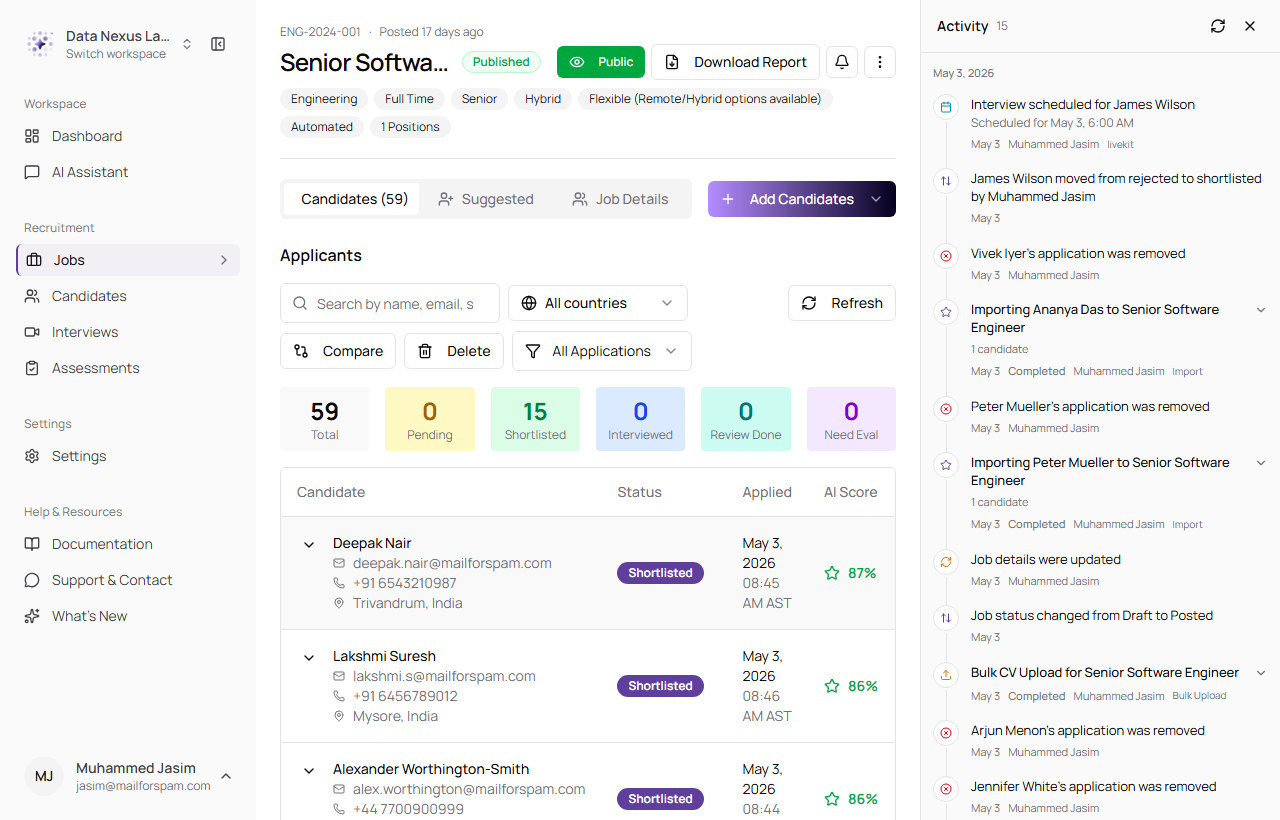
Job Details Areas
| Area | Description |
|---|---|
| Header | Shows the job serial number, posted date, title, publish status, public visibility, and quick actions. |
| Quick facts | Summarizes department, employment type, seniority, location, remote type, interview type, salary, and number of positions. |
| Candidates | Shows applicants for the job and their hiring status. |
| Suggested | Shows suggested candidates when available. |
| Job Details | Shows the job description, requirements, benefits, assessment, and quick information. |
| Add Candidates | Opens options for bringing candidates into this job. |
| Download Report | Downloads a PDF report for all applicants or a filtered applicant group. |
| More actions | Opens actions such as edit, share, embed, upload history, rescan applicants, or close job. |
| Activity | Shows job-level activity such as imports, uploads, interview scheduling, application changes, and report downloads. |
Apply: Add Candidates to a Job
Use Add Candidates from a job details page when you need to bring candidates directly into that role’s hiring workflow. This is the recruiter-side apply flow. It is different from creating a candidate profile only; these actions connect the candidate to the selected job and start job-level review.
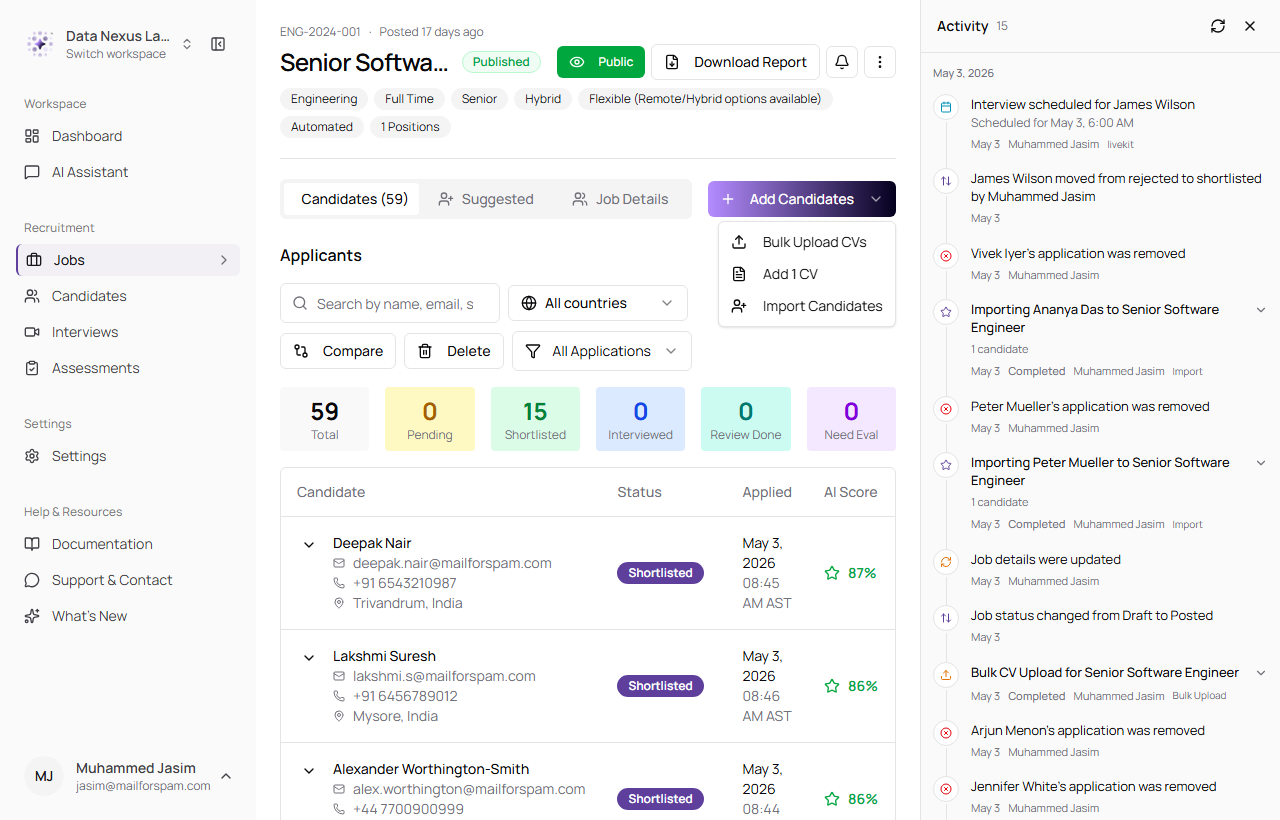
- Go to Jobs.
- Open the job you want to add candidates to.
- Stay on the Candidates tab.
- Click Add Candidates.
- Choose Add 1 CV, Bulk Upload CVs, or Import Candidates.
Add Candidate Options
| Option | Use it when | What happens |
|---|---|---|
| Add 1 CV | You have one resume file for one candidate. | Opens a single-CV upload dialog. Upload a PDF, DOC, or DOCX file, add optional notes, and submit it to this job. |
| Bulk Upload CVs | You have many resume files for the same job. | Opens the bulk upload workflow. TruePick uploads the files, processes them in the background, extracts candidate details, and adds the candidates to the job. |
| Import Candidates | The people already exist in your candidate database. | Opens a searchable candidate picker. Select existing candidates and add them to the job workflow without uploading CVs again. |
Add 1 CV
Use Add 1 CV when you have one candidate resume to add to the current job.
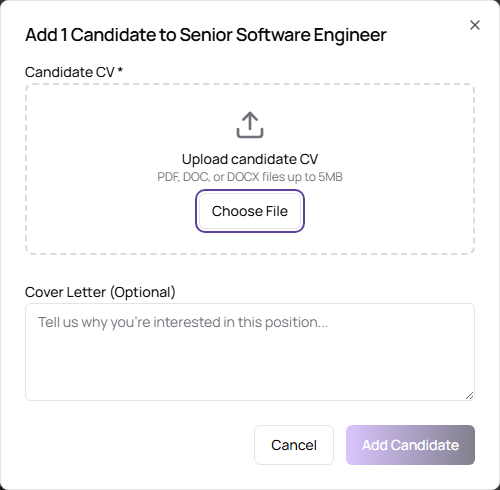
Single CV Upload Fields
| Field | Description | Required |
|---|---|---|
| Candidate CV | Resume file for the candidate. Supported formats are PDF, DOC, and DOCX. Maximum size is 5 MB. | Yes |
| Cover Letter / Notes | Optional notes or cover letter text attached to the application. | No |
| Add Candidate | Submits the CV and starts processing for the selected job. | Yes |
Bulk Upload CVs
Use Bulk Upload CVs when you have multiple resume files for the same role.
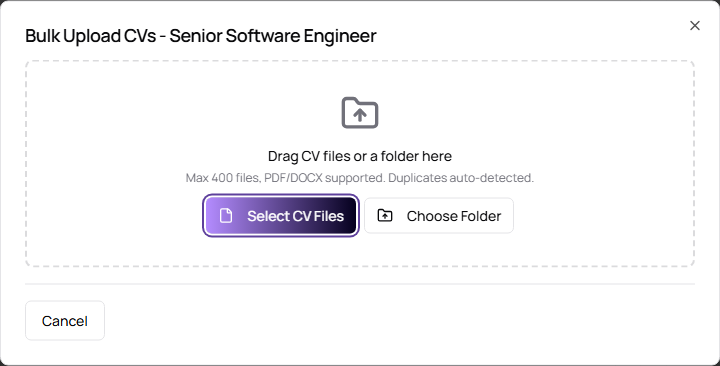
Bulk upload is designed for high-volume sourcing. After upload, TruePick tracks file processing, creates or updates candidate records, and shows progress in the upload center or activity stream. Use it when you want to process multiple CVs for the same job in one action.
| Field or Action | Description |
|---|---|
| Drag CV files or a folder here | Drop CV files or a folder into the upload area. |
| Select CV Files | Opens a file picker for multiple CVs. |
| Choose Folder | Opens a folder picker for bulk selection. |
| File limit | Supports up to 400 files. |
| Supported formats | PDF and DOCX are supported in bulk upload. |
| Duplicate detection | Duplicate CVs are detected before or during processing. |
Import Candidates
Use Import Candidates when the candidate already exists in TruePick and you want to add them to this job without uploading another CV.
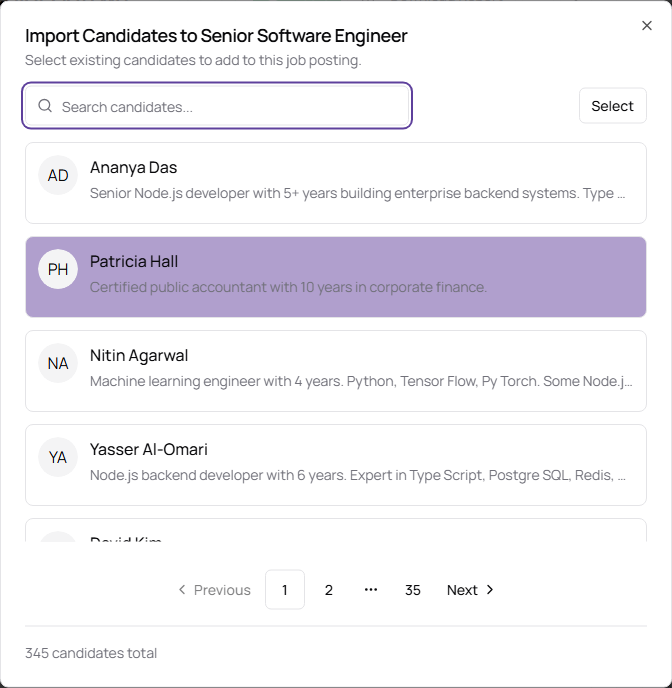
Import Candidates Fields
| Field | Description | Required |
|---|---|---|
| Search candidates | Finds existing candidates by name or matching details. | No |
| Select | Turns on selection mode so you can choose one or more candidates. | Yes |
| Select All | Selects candidates on the current page. | No |
| Add to Hiring | Adds selected candidates to this job and starts job-level matching or review. | Yes |
| Pagination | Moves through existing candidate results. | No |
Use Import Candidates when a candidate is already in TruePick. This avoids duplicate profiles and keeps the candidate’s existing history connected.
Download Report
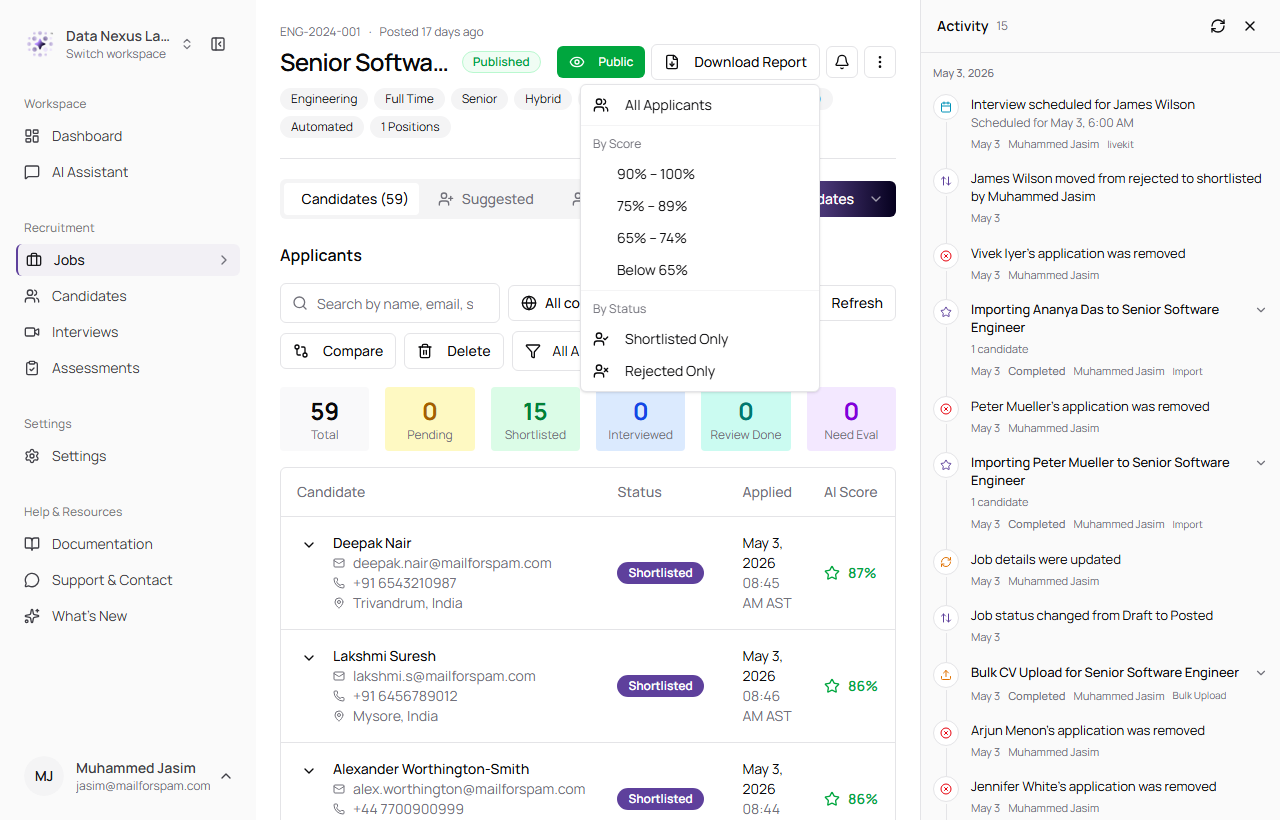
Use Download Report to export a job-level PDF report. Reports can include all applicants or only a filtered group.
- Open a job.
- Click Download Report.
- Choose a report filter.
- Wait for TruePick to generate the PDF.
- Open the downloaded PDF from your browser downloads.
| Report Option | Description |
|---|---|
| All Applicants | Downloads a report for every applicant in the job. |
| 90% - 100% | Downloads only the highest AI-score candidates. |
| 75% - 89% | Downloads strong-fit candidates. |
| 65% - 74% | Downloads average-fit candidates. |
| Below 65% | Downloads lower-score candidates. |
| Shortlisted Only | Downloads only shortlisted applicants. |
| Rejected Only | Downloads only rejected applicants. |
Sample generated report: jobs-sample-report.pdf
Compare Candidates
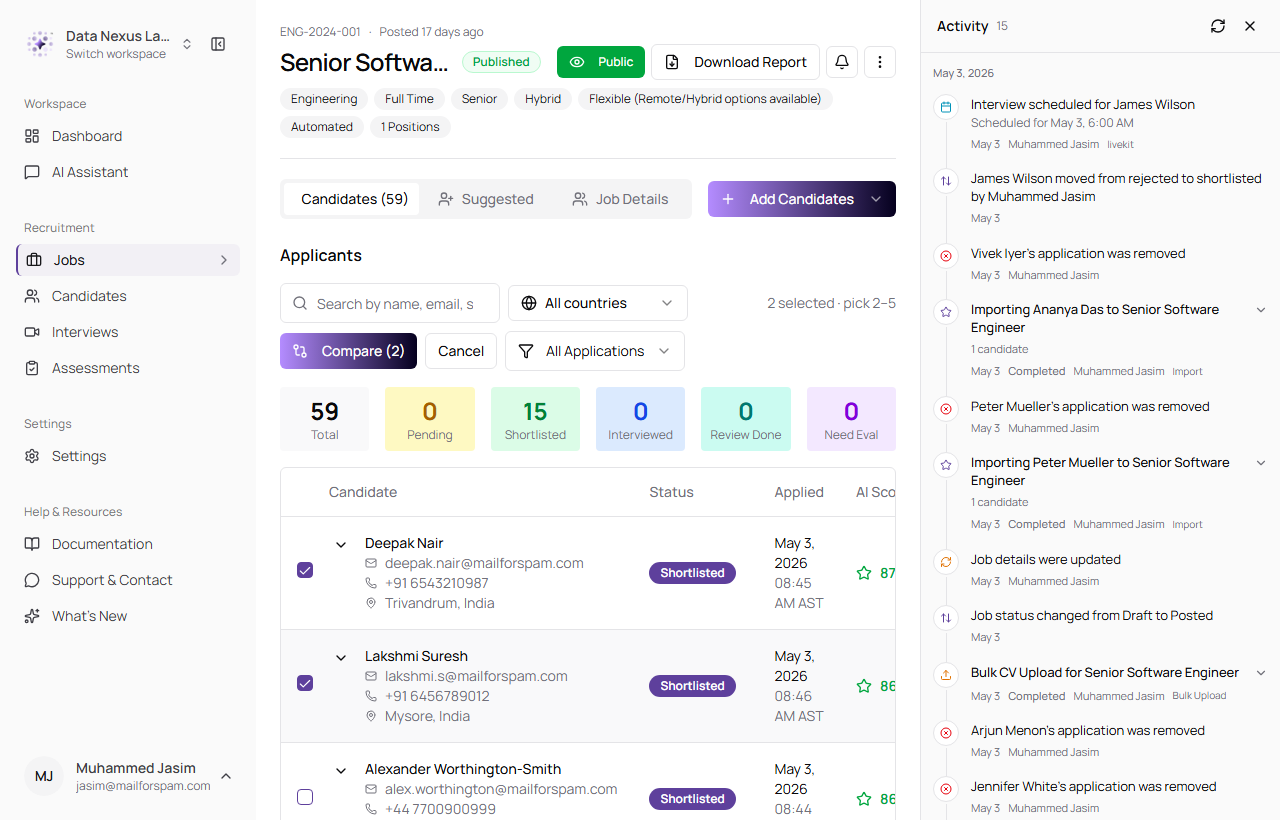
Use Compare when you want to evaluate two to five applicants side by side against the job description.
- Open a job.
- Click Compare above the applicants table.
- Select 2 to 5 candidates.
- Click Compare with the selected count.
- Review the generated comparison.
- Use Download PDF if you need to export the comparison.
- Use Regenerate if the comparison needs to be refreshed.
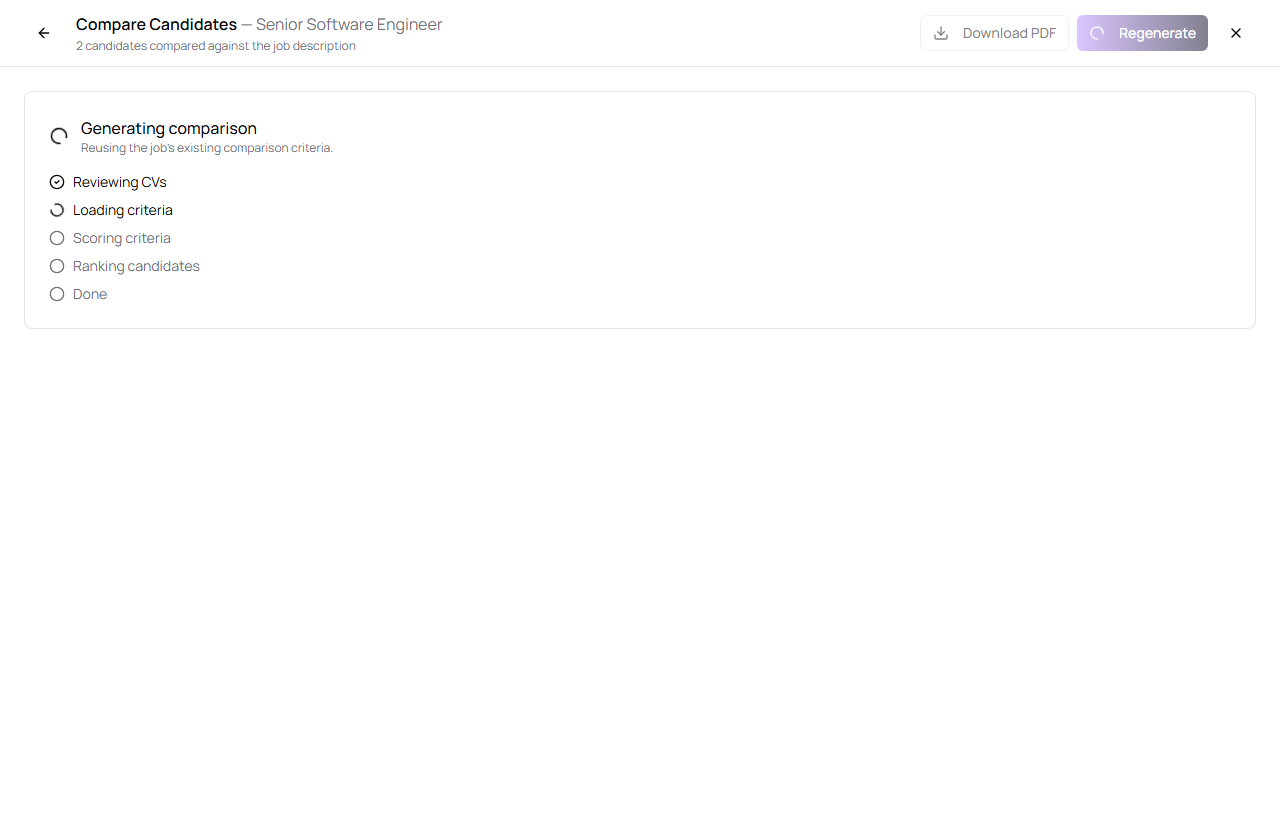
Compare uses AI to summarize candidate differences. Treat it as a review aid and confirm important details from the CV, interview notes, and candidate profile.
Upload History
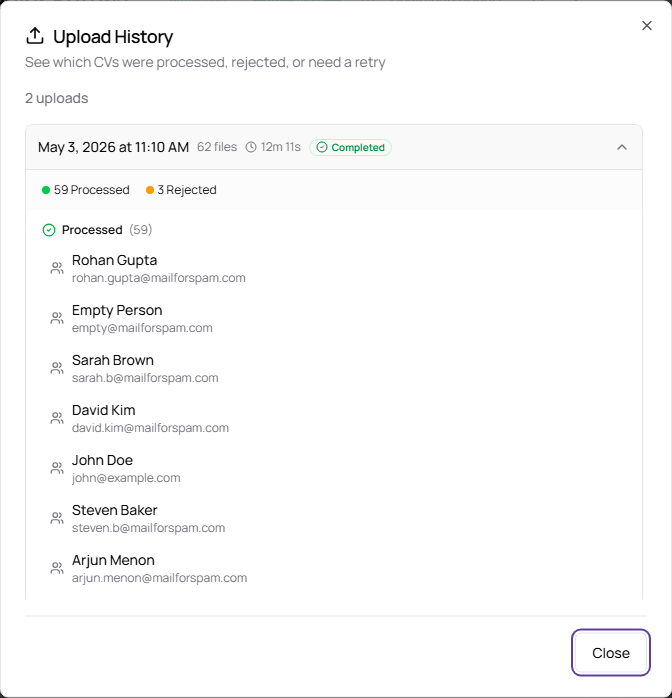
Use Upload History to review previous bulk upload sessions for a job. It shows which CVs were processed, rejected, failed, duplicated, or still processing.
- Open a posted job.
- Click More actions.
- Select Upload History.
- Expand an upload session to see file-level results.
- Retry failed files when a retry action is available.
| Area | Description |
|---|---|
| Upload session | Shows when the upload happened, how many files were included, how long it took, and the final status. |
| Processed | CVs that were processed into candidates. |
| Rejected | Files rejected during validation or processing. |
| Failed | Files that could not be processed. Some failures can be retried. |
| Duplicates | CVs detected as already uploaded or already connected to a candidate. |
| Retry | Requeues retryable failed files. |
Applicants Table
| Field | Description |
|---|---|
| Candidate | Candidate name, email, phone number, and location when available. |
| Status | Current application stage, such as Pending, Shortlisted, Interview Scheduled, or Rejected. |
| Applied | Date and time the candidate applied. |
| AI Score | AI-generated candidate score for the job. Use it as a review aid, not as the only hiring decision. |
| Interview Score | Interview evaluation score when an interview has been completed. |
| Actions | Shows next-step actions such as assigning or completing an interview when available. |
A match score or candidate score is an AI-generated rating of how well a candidate fits a job. Use it as a review aid, not as the only hiring decision.