Dashboard
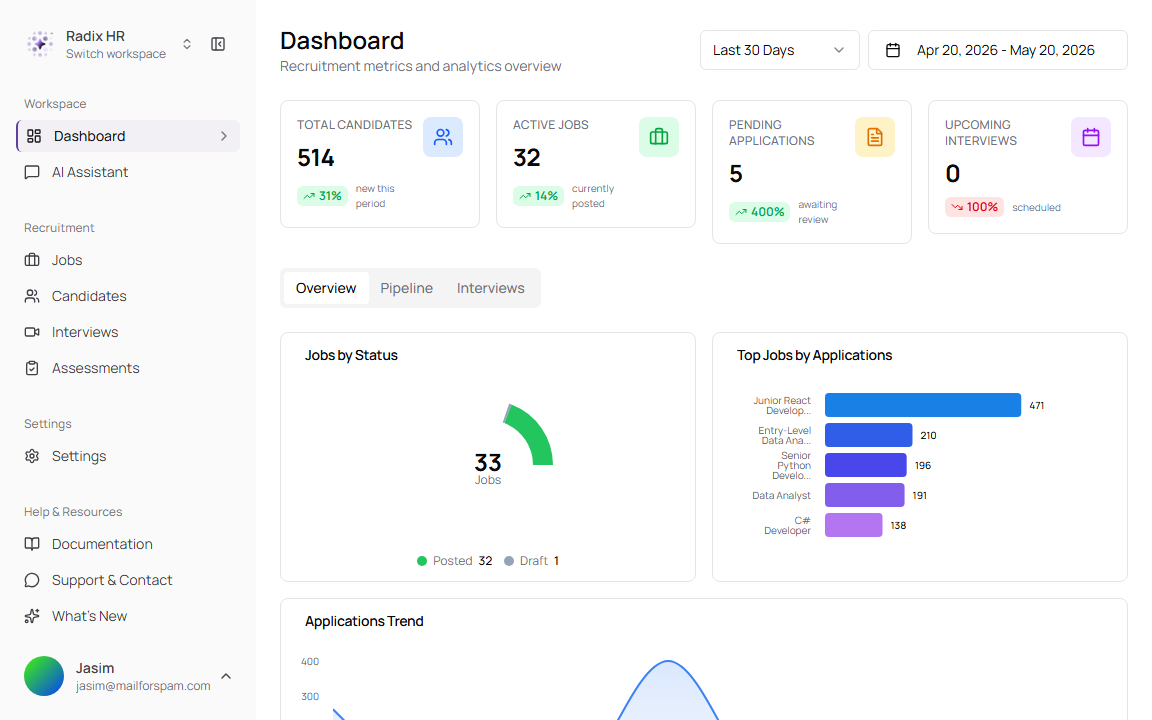
The Dashboard gives you a quick view of recruitment activity across your current workspace. Use it at the start of the day to check hiring volume, review application movement, spot jobs that need attention, and see upcoming interview work.
An ATS (Applicant Tracking System) is software that helps your team manage jobs, applications, candidates, interviews, and hiring decisions in one place.
What you can do here:
- Track total candidates, active jobs, pending applications, and upcoming interviews.
- Compare current activity with the previous period.
- Filter dashboard data by date range.
- Review job status, top jobs, and application trends.
- Check where candidates are in the hiring pipeline.
- Review interview outcomes, assessment pass rates, and scheduled interviews.
- Open related candidate, job, and interview records from dashboard tables.
Open the Dashboard
The Dashboard is the first workspace page for reviewing recruitment analytics.
- Sign in to TruePick.
- Select the correct workspace if your account has access to more than one workspace.
- Go to Dashboard from the sidebar.
- Use the date controls at the top right to choose the reporting period.
Dashboard numbers are scoped to the selected workspace. If the numbers do not look right, check the workspace name in the sidebar before reviewing the data.
Filter by Date Range
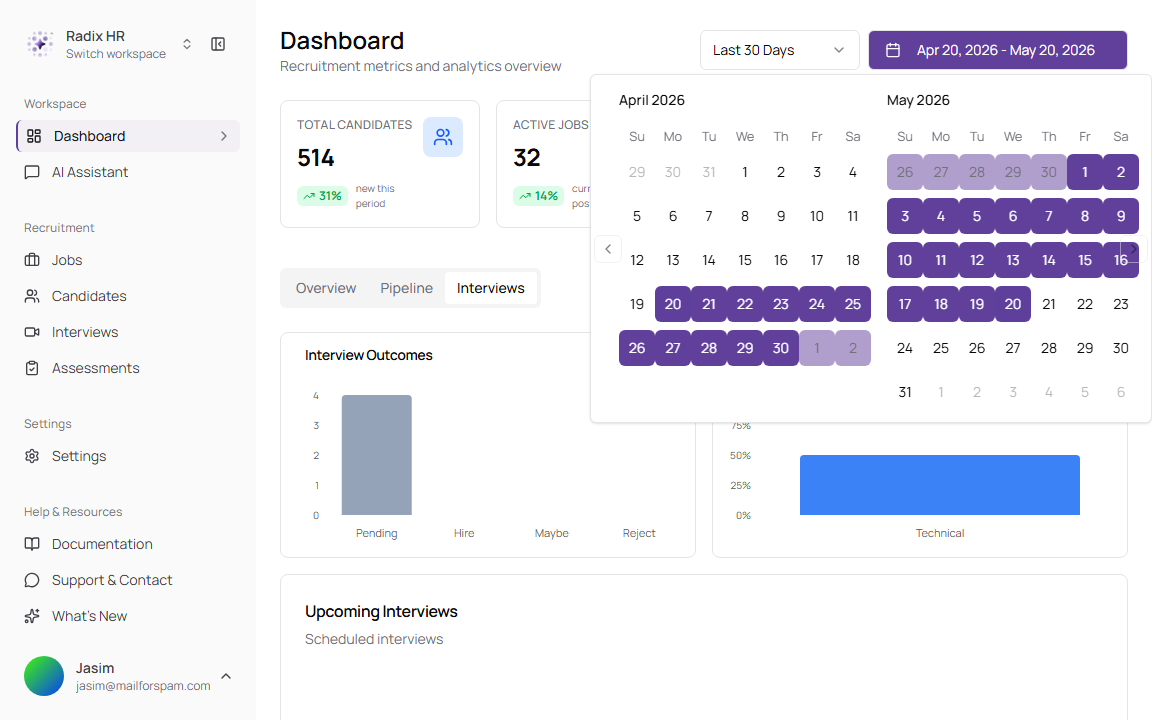
The date range controls change the dashboard metrics, charts, and tables for the selected period. The default view is Last 30 Days.
- Open Dashboard.
- Use the period dropdown to choose a preset.
- Use the date button to pick a custom start and end date.
- Wait for the page to refresh with the new reporting period.
Date Range Options
| Option | Description | Required |
|---|---|---|
| Today | Shows activity from the current day only. | No |
| Yesterday | Shows activity from the previous day only. | No |
| Last 7 Days | Shows activity from the last seven days. | No |
| Last 30 Days | Shows activity from the last thirty days. This is the default view. | No |
| This Month | Shows activity from the first day of the current month through the end of the current month. | No |
| Last Month | Shows activity from the previous calendar month. | No |
| This Quarter | Shows activity from the current quarter. | No |
| This Year | Shows activity from the current calendar year. | No |
| Custom Range | Lets you choose your own start and end date from the calendar. | No |
Read the KPI Cards
The KPI cards summarize the most important hiring activity for the selected date range. Each card also shows a percentage comparison against the previous period.
| Card | What it means | Opens |
|---|---|---|
| Total Candidates | The number of candidates in the workspace, with the count added during the selected period. | Candidates |
| Active Jobs | Jobs that are currently posted and open for hiring. | Jobs filtered to posted jobs |
| Pending Applications | Applications waiting for review. An application is a candidate’s submission to a specific job. | Candidates filtered to pending applications |
| Upcoming Interviews | Interviews scheduled for the workspace. | Interviews |
A rising percentage is not always good or bad by itself. For example, more Pending Applications can mean strong applicant volume, but it can also mean the team needs to review candidates faster.
Use the Overview Tab
The Overview tab helps you understand hiring volume and job activity at a glance.
| Section | Description |
|---|---|
| Jobs by Status | Shows how many jobs are in each status, such as Posted or Draft. |
| Top Jobs by Applications | Shows the roles receiving the most applications during the selected period. |
| Applications Trend | Shows how applications and key hiring outcomes change over time. |
| Recent Applications | Lists the latest applications with candidate, job, status, AI score, and applied date. |
The Recent Applications table includes clickable candidate and job names. Use it when you need to quickly open a new application for review.
Recent Applications Fields
| Field | Description | Required |
|---|---|---|
| Candidate | Candidate name, avatar or initials, and email address. Select the candidate to open their profile. | Yes |
| Job | The job the candidate applied to, with location when available. Select the job to open its details. | Yes |
| Status | The candidate’s current application stage, such as Rejected, Shortlisted, or Interview Scheduled. | Yes |
| Score | The AI review score for the application when available. A candidate score is an AI-generated rating of how well the candidate fits the job. | No |
| Applied | Shows when the application was submitted, such as 2 days ago. | Yes |
Use the Pipeline Tab
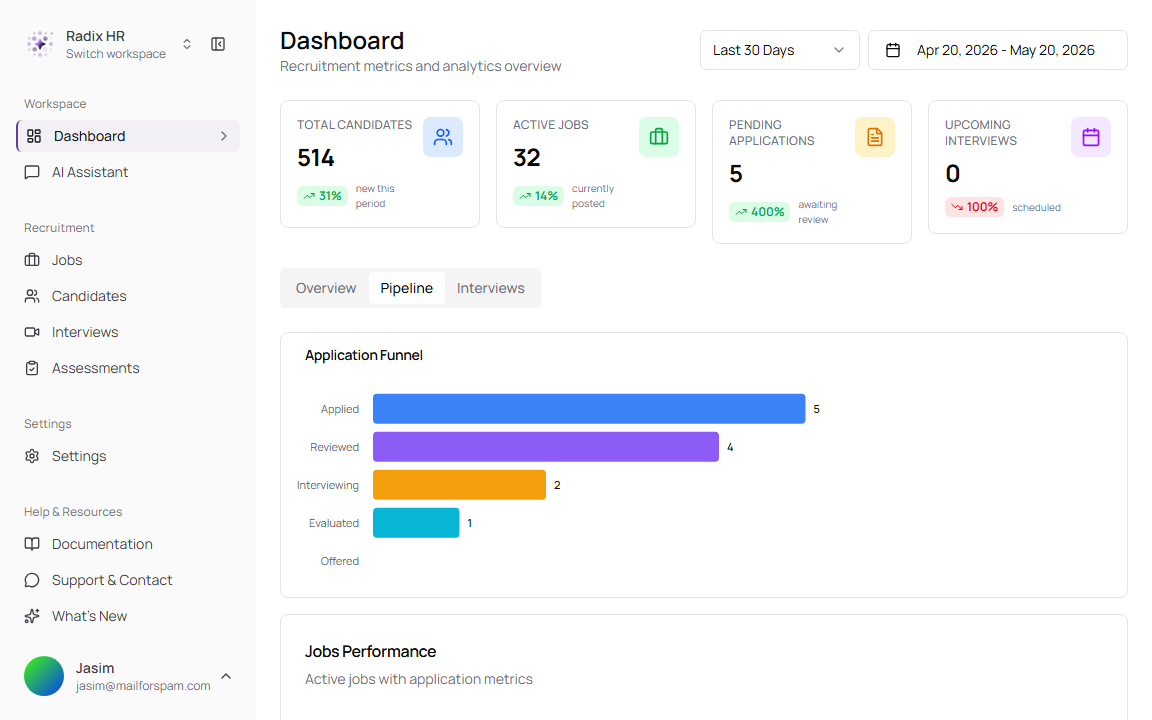
The Pipeline tab shows how candidates move through hiring stages and which jobs are converting applications into later-stage outcomes.
A pipeline is the set of stages a candidate moves through from applying to receiving an offer or being rejected. A stage is one step in that process.
Pipeline Sections
| Section | Description |
|---|---|
| Application Funnel | Shows candidate counts by stage, such as Applied, Reviewed, Interviewing, Evaluated, and Offered. Use this to see where candidates are dropping off. |
| Jobs Performance | Lists active jobs with counts for Applications, Shortlisted, Interviewed, Offered, and Conversion. |
Jobs Performance Fields
| Field | Description | Required |
|---|---|---|
| Job | Job title, location, and posted date when available. Select the job to open the job details page. | Yes |
| Applications | Total applications for the job in the selected date range. | Yes |
| Shortlisted | Number of candidates selected to move forward after review. A shortlist is the group chosen for the next hiring step. | Yes |
| Interviewed | Number of candidates who have reached an interview stage. | Yes |
| Offered | Number of candidates who received an offer. | Yes |
| Conversion | The percentage of applications that became offers. | Yes |
Use the Interviews Tab
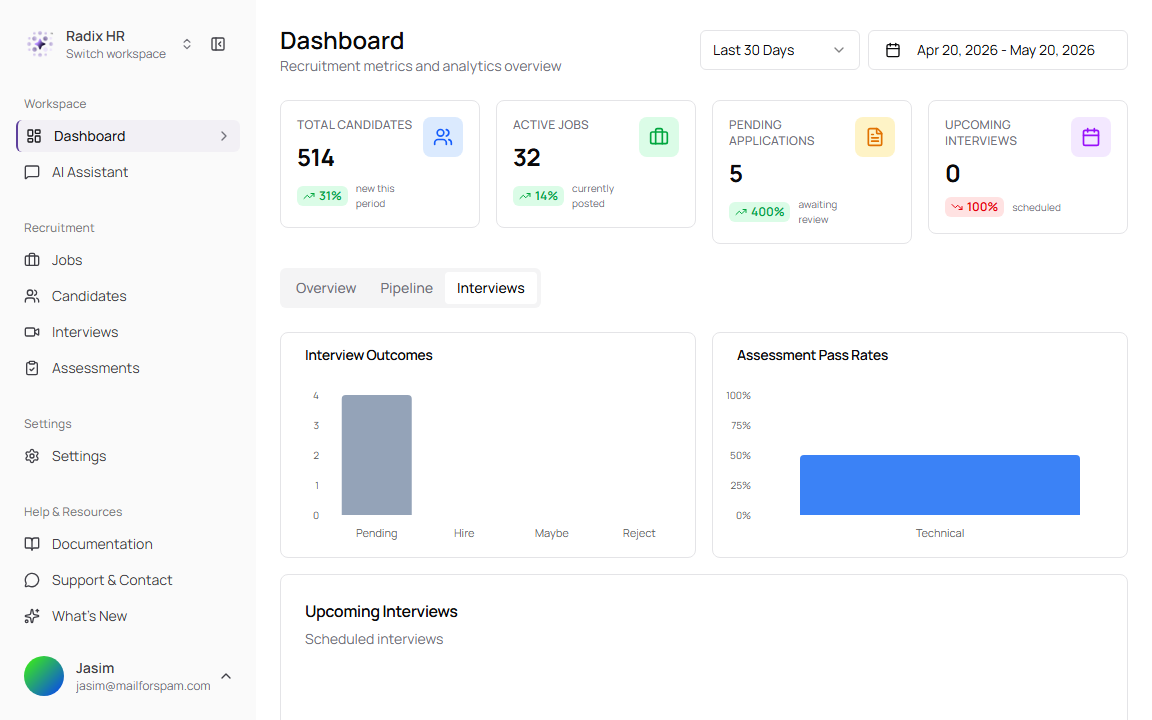
The Interviews tab focuses on interview and assessment results.
An assessment is a test or set of questions used to evaluate candidate skills. The AI Interviewer is TruePick’s automated interviewer that can conduct candidate interviews when a job is configured for automated interviews.
Interview Sections
| Section | Description |
|---|---|
| Interview Outcomes | Shows interview result counts, such as Pending, Hire, Maybe, and Reject. |
| Assessment Pass Rates | Shows pass rates by assessment category, such as Technical. |
| Upcoming Interviews | Lists scheduled interviews. If none are scheduled, the table shows No upcoming interviews. |
Upcoming Interviews Fields
| Field | Description | Required |
|---|---|---|
| Candidate | Candidate name and email. Select the candidate to open their profile. | Yes |
| Job | Job connected to the interview. Select it to open the job details. | Yes |
| Date & Time | Interview date, start time, duration, and relative timing. | Yes |
| Type | Interview format, such as In Person, Google Meet, Zoom, Teams, or Text Chat. | No |
| Action | Opens the interview details page. | No |