Email Settings
Use Email Settings to configure outbound email. You can use the default provider or save your own SMTP server details.
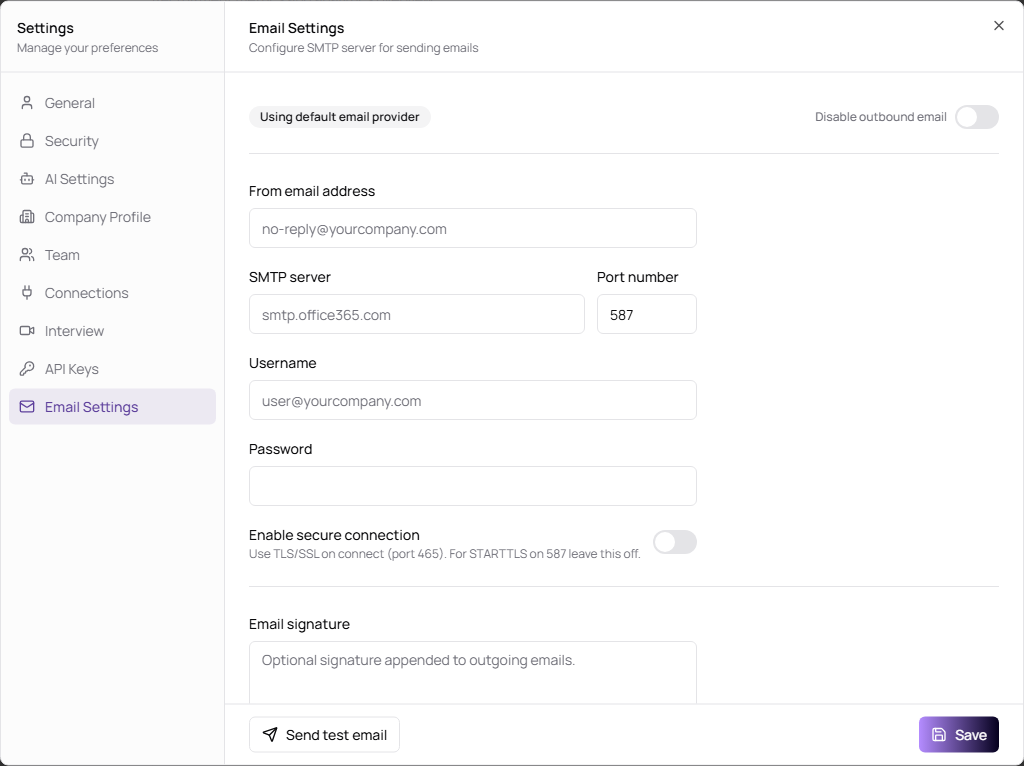
Configure SMTP
- Open Settings.
- Select Email Settings.
- Enter SMTP details.
- Use Send test email to confirm delivery.
- Click Save.
| Field | Description | Required |
|---|---|---|
| Disable outbound email | Turns off outbound email when enabled. | No |
| From email address | Sender address, such as no-reply@yourcompany.com. | Yes for SMTP |
| SMTP server | SMTP host, such as smtp.office365.com. | Yes for SMTP |
| Port number | SMTP port, commonly 587 for STARTTLS or 465 for SSL. | Yes for SMTP |
| Username | SMTP account username. | Yes for SMTP |
| Password | SMTP account password or app password. Leave blank to keep a stored password. | Yes for first setup |
| Enable secure connection | Use TLS/SSL on connect. Turn this on for port 465; leave it off for STARTTLS on port 587. | No |
| Email signature | Optional signature appended to outbound emails. | No |
| Send test email | Sends a test message to a recipient you enter. | No |
| Revert to Resend | Removes saved SMTP settings and returns to the default provider when available. | No |