Assessments
Assessments are tests or question sets you send to candidates to evaluate skills before moving them forward. Use the Assessments page to create assessment templates, manage questions, assign tests to candidates, and review how candidates perform.
What you can do here:
- Search and filter assessment templates.
- Create a new assessment with a time limit and pass mark.
- Edit category, difficulty, pass score, and advanced settings.
- Add text, single-choice, multiple-choice, and video questions.
- Generate question sets with AI from a job description.
- Preview, clone, assign, or delete an assessment.
- Track attempts, average score, and pass rate.
View Assessments
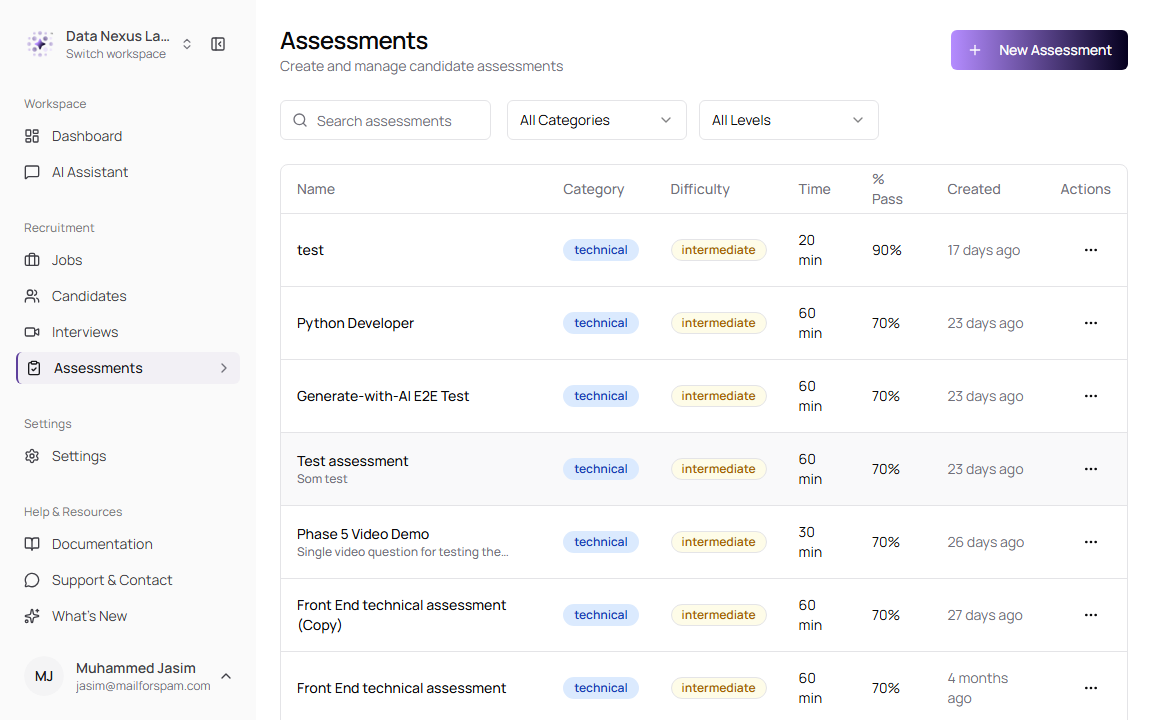
The assessment list shows every assessment available in your workspace. Use it when you need to find a template, check its pass mark, or open it for editing.
- Go to Assessments from the sidebar.
- Use Search assessments to find an assessment by name.
- Use All Categories to filter by assessment type.
- Use All Levels to filter by difficulty.
- Select an assessment name to open the workspace.
- Use the Actions menu to view, edit, clone, or delete an assessment.
Page Controls
| Control | Description |
|---|---|
| New Assessment | Opens the assessment creation dialog. |
| Search assessments | Filters the list by assessment name or matching text. |
| All Categories | Filters by Technical, Behavioral, Cognitive, Skills, or Mixed. |
| All Levels | Filters by Entry, Intermediate, Advanced, or Expert. |
| Actions | Opens row actions such as View, Edit, Clone, and Delete. |
List Fields
| Field | Description |
|---|---|
| Name | Assessment title and optional short description. Select the name to open the assessment workspace. |
| Category | The assessment type, such as technical or behavioral. |
| Difficulty | The expected candidate level. |
| Time | How long candidates have to complete the assessment. |
| % Pass | Minimum score candidates need to pass. |
| Created | How long ago the assessment was created. |
| Actions | Opens management actions for that assessment. |
Create an Assessment
Use New Assessment when you want to create a reusable assessment template. You can set the basics first, then add questions and adjust settings in the editor.
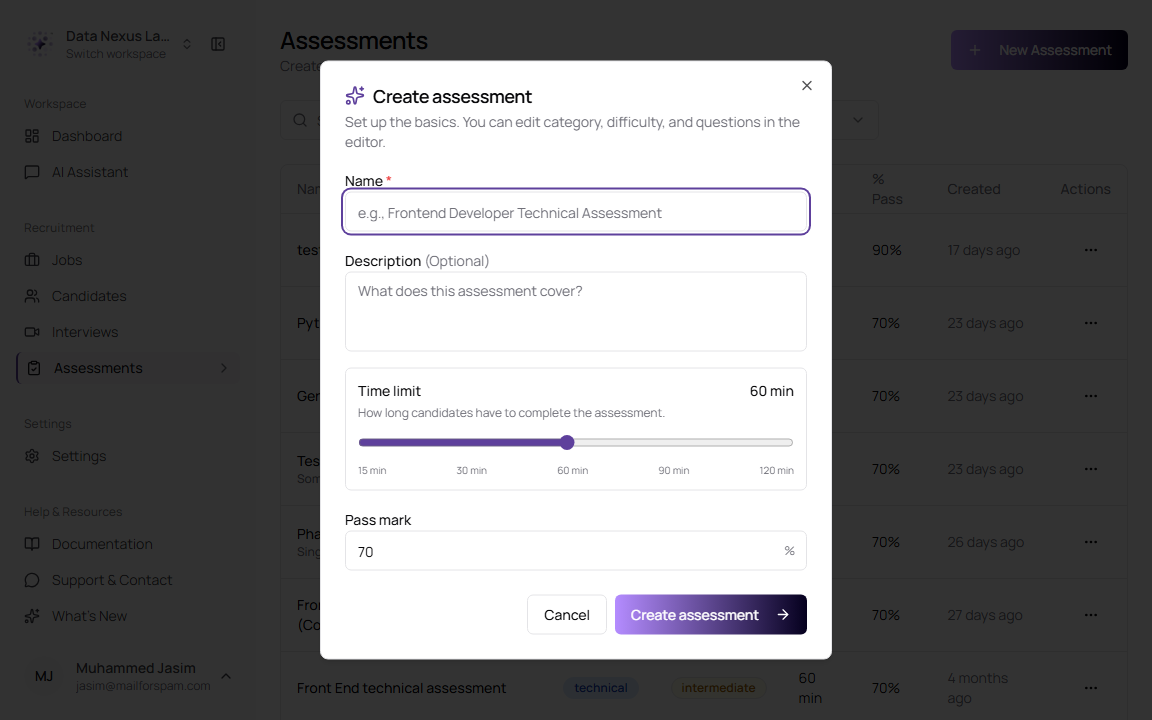
- Go to Assessments.
- Click New Assessment.
- Enter a Name.
- Add a Description if you want to explain what the assessment covers.
- Set the Time limit.
- Set the Pass mark.
- Click Create assessment.
Create Assessment Fields
| Field | Description | Required |
|---|---|---|
| Name | Assessment title shown to your team. Use a clear name such as Frontend Developer Technical Assessment. | Yes |
| Description | Short explanation of what the assessment covers. This helps recruiters choose the right test later. | No |
| Time limit | Candidate completion time. The slider supports 5 to 120 minutes, with common marks at 15, 30, 60, 90, and 120 minutes. | Yes |
| Pass mark | Minimum percentage score needed to pass. Enter a value from 0 to 100. | Yes |
| Cancel | Closes the dialog without creating an assessment. | No |
| Create assessment | Creates the assessment and opens it for editing. | Yes |
Keep the first version simple. Create the assessment with a clear name, then refine category, difficulty, questions, and scoring from the workspace.
Edit the Assessment Workspace
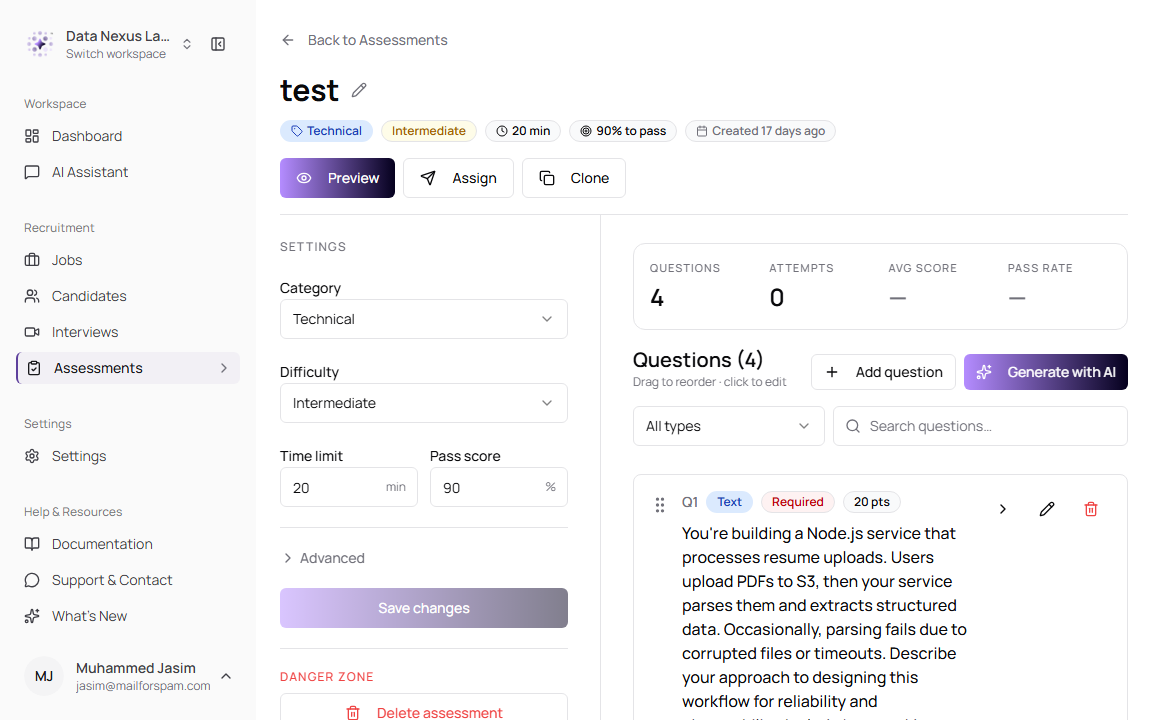
Open an assessment to manage its settings, questions, performance summary, and assignment actions.
Header Actions
| Action | Description |
|---|---|
| Back to Assessments | Returns to the assessment list. |
| Edit title | Select the title or pencil icon to rename the assessment. |
| Preview | Opens the candidate-facing preview so you can check the assessment before assigning it. |
| Assign | Opens the assignment dialog for sending the assessment to candidates. |
| Clone | Creates a copy you can edit without changing the original. |
Settings Fields
| Field | Description | Required |
|---|---|---|
| Category | Classifies the assessment as Technical, Behavioral, Cognitive, Skills, or Mixed. | Yes |
| Difficulty | Sets the target level: Entry, Intermediate, Advanced, or Expert. | Yes |
| Time limit | Candidate completion time in minutes. | Yes |
| Pass score | Minimum score needed to pass. | Yes |
| Advanced | Contains additional behavior such as randomized question order or candidate feedback settings when available. | No |
| Save changes | Saves updates to the assessment settings. | Yes |
| Delete assessment | Permanently removes the assessment. Use this only when it should no longer be assigned or reused. | No |
Usage Summary
| Metric | Description |
|---|---|
| Questions | Number of questions in the assessment. |
| Attempts | Number of candidate submissions. |
| Avg Score | Average candidate score across attempts. |
| Pass Rate | Percentage of attempts that reached the pass score. |
Add Questions
Questions define what the candidate sees and how TruePick scores the response. You can add questions manually or use AI to draft a question set from a job description.
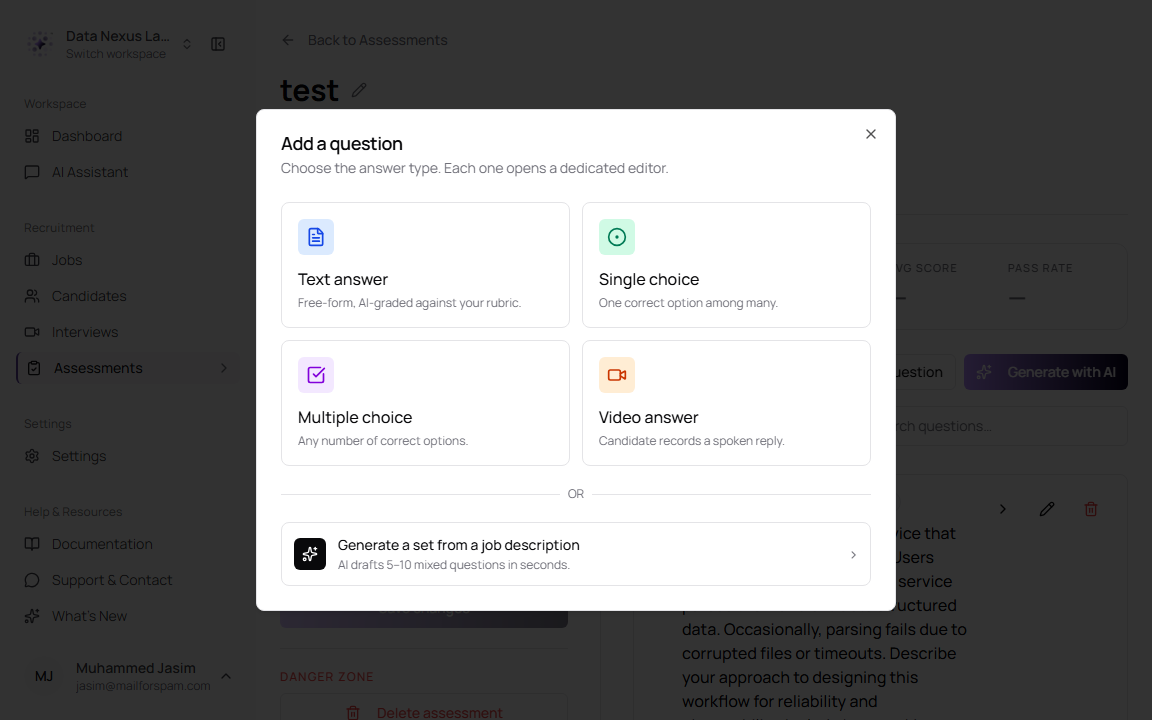
- Open an assessment.
- Click Add question.
- Choose the question type.
- Enter the question text, scoring details, and options if needed.
- Save the question.
- Drag questions to reorder them when needed.
Question Types
| Type | Use it for |
|---|---|
| Text answer | Free-form written answers. TruePick can evaluate the response against your rubric. |
| Single choice | One correct answer from several options. |
| Multiple choice | More than one correct answer from several options. |
| Video answer | A recorded spoken reply. Use this when communication, explanation, or presentation matters. |
| Generate a set from a job description | AI drafts 5 to 10 mixed questions from the job description. Review and edit the result before assigning. |
Common Question Fields
| Field | Description | Required |
|---|---|---|
| Question | The prompt the candidate answers. Make it specific and job-relevant. | Yes |
| Expected answer | The ideal answer or key points TruePick should look for. | Required for AI-scored written questions |
| Scoring rubric | Defines what counts as excellent, good, acceptable, or poor. This improves scoring consistency. | Recommended |
| Options | Answer choices for single-choice and multiple-choice questions. | Required for choice questions |
| Weight | How many points the question contributes to the total score. | Yes |
| Required | Makes the candidate answer the question before submitting. | No |
| AI evaluation | Allows TruePick to evaluate an answer using your expected answer and rubric. | No |
| Partial credit | Allows some credit for partially correct multiple-choice answers. | No |
| Video prompt | Instructions for a video response. | Required for video questions |
| Tips | Optional guidance shown to the candidate. | No |
| Recording time limit | Maximum time for a video response. | Required for video questions |
| Evaluation criteria | What reviewers or AI should consider when scoring a video answer. | Recommended |
Review AI-generated questions before assigning the assessment. Confirm the questions match the role, the scoring weights are fair, and the pass score is realistic.
Assign an Assessment
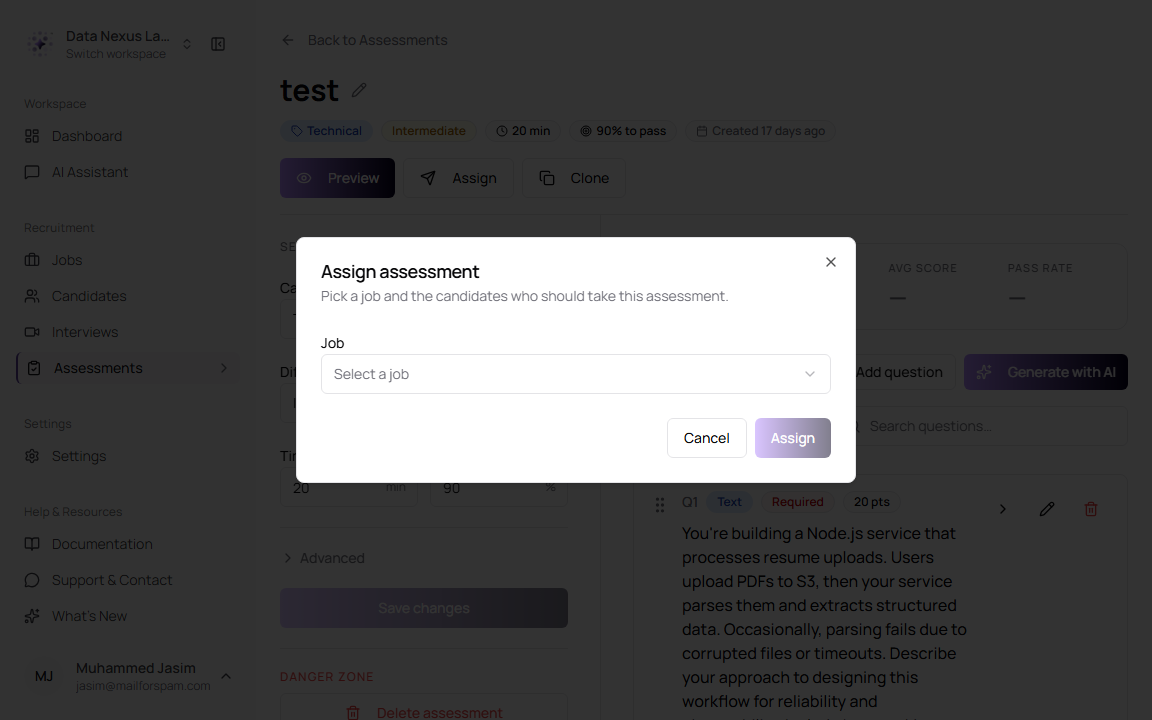
Use Assign when the assessment is ready for candidates. Assignments connect the assessment to a job and the candidates who should complete it.
- Open the assessment.
- Click Assign.
- Select a Job.
- Select one or more Candidates for that job.
- Mark the assessment as Required if completion is mandatory.
- Add a Due date if candidates must finish by a deadline.
- Click Assign.
Assignment Fields
| Field | Description | Required |
|---|---|---|
| Job | Job connected to the assessment assignment. Candidate selection depends on this job. | Yes |
| Candidates | Candidates who should receive the assessment. You can search by name or email. | Yes |
| Select all | Selects all available candidates for the chosen job. | No |
| Clear all | Removes all selected candidates. | No |
| Already assigned | Indicates candidates who already have this assessment assignment. | No |
| Required | Marks the assessment as required for the candidate’s hiring process. | No |
| Due date | Optional deadline for completion. | No |
| Cancel | Closes the dialog without assigning the assessment. | No |
| Assign | Sends or records the assessment assignment for the selected candidates. | Yes |
Best Practices
- Use one assessment for one clear hiring purpose, such as backend screening or communication evaluation.
- Keep the Time limit realistic for the number and difficulty of questions.
- Set the Pass score high enough to screen fairly, but not so high that it blocks qualified candidates.
- Use Clone before making major changes to an assessment that is already used in a hiring process.
- Preview the assessment before assigning it to candidates.