AI Assistant
The AI Assistant is a recruitment chat workspace. Use it to ask hiring questions, draft job content, create interview material, analyze recruiting information, and continue previous conversations.
The assistant can work with plain text, uploaded files, selected context, and a chosen AI model. It is useful when you need a fast first draft, a comparison, a checklist, or guidance while working on jobs, candidates, interviews, and assessments.
What you can do here:
- Start a new recruitment chat.
- Use suggested prompts for common hiring tasks.
- Ask questions in the message box.
- Upload files for the assistant to review.
- Add context with
@mentions. - Select the AI model used for the response.
- Stop a response while it is generating.
- Browse and reopen previous chat conversations.
- Copy or rate assistant responses after they are generated.
Open the AI Assistant
Use the AI Assistant when you want to work through a hiring task in chat instead of filling a form immediately.
- Sign in to TruePick.
- Select the correct workspace if your account has more than one workspace.
- Go to AI Assistant from the sidebar.
- Type a message in Send a message… or select one of the suggested prompts.
Be specific in your prompt. Include the role, seniority, location, hiring goal, and any constraints the assistant should follow.
Start a Chat
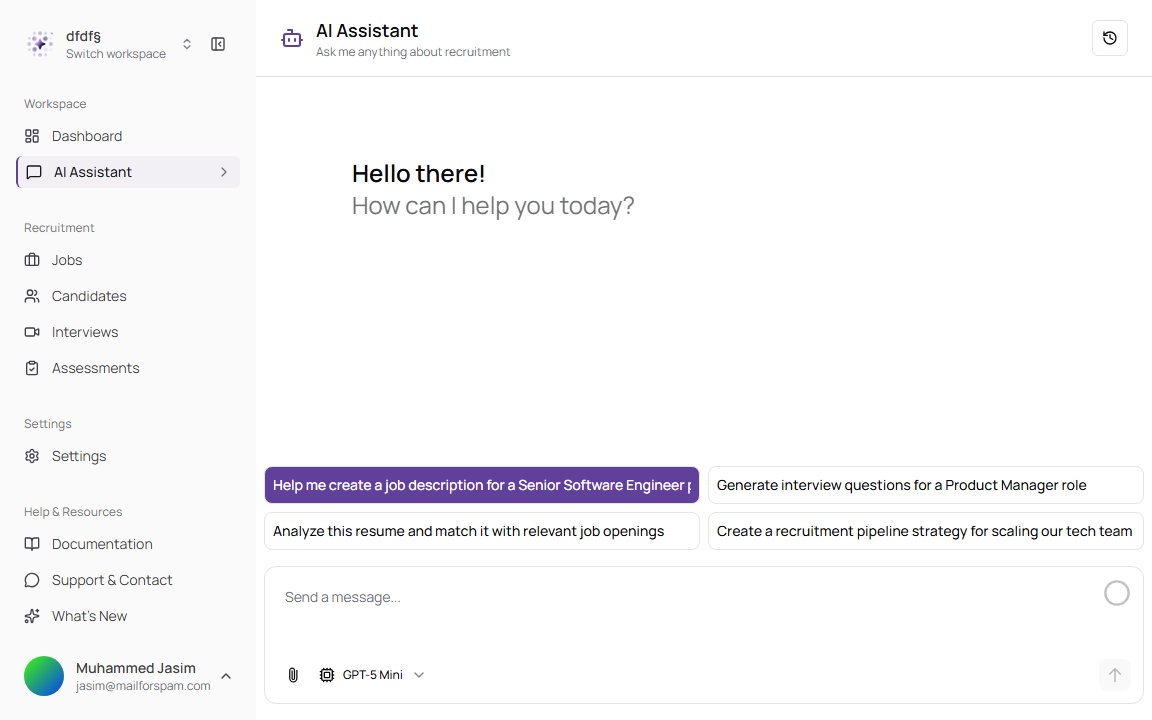
The empty chat view shows a greeting and suggested prompts. Select a suggestion to send it immediately, or type your own request.
Suggested Prompts
| Prompt | Use it when |
|---|---|
| Help me create a job description for a Senior Software Engineer position | You need a first draft for a job posting. |
| Generate interview questions for a Product Manager role | You need structured screening or interview questions. |
| Analyze this resume and match it with relevant job openings | You want to review a candidate against available roles. Upload the resume before sending when needed. |
| Create a recruitment pipeline strategy for scaling our tech team | You need a hiring process plan for a team or group of roles. |
Send a Message
Use the message box at the bottom of the page to ask questions or give instructions.
- Click Send a message….
- Enter your request.
- Optionally attach files or add
@context. - Choose the AI model if you want a different model.
- Click the send arrow.
Message Box Controls
| Control | Description | Required |
|---|---|---|
| Send a message… | The main prompt field. Use it to ask questions, request drafts, or give instructions. | Yes |
| Paperclip | Opens file upload. Use it to attach a resume, notes, job brief, or other file the assistant should consider. | No |
| Model selector | Chooses which AI model should answer the next message. The default is GPT-5 Mini. | No |
| Send arrow | Sends the message. It is disabled until there is text or an uploaded file. | Yes |
| Stop | Appears while the assistant is responding. Use it to stop generation if the answer is going in the wrong direction. | No |
Review AI-generated hiring content before using it with candidates. Check accuracy, fairness, role requirements, and your company’s hiring policy.
Add Context with Mentions
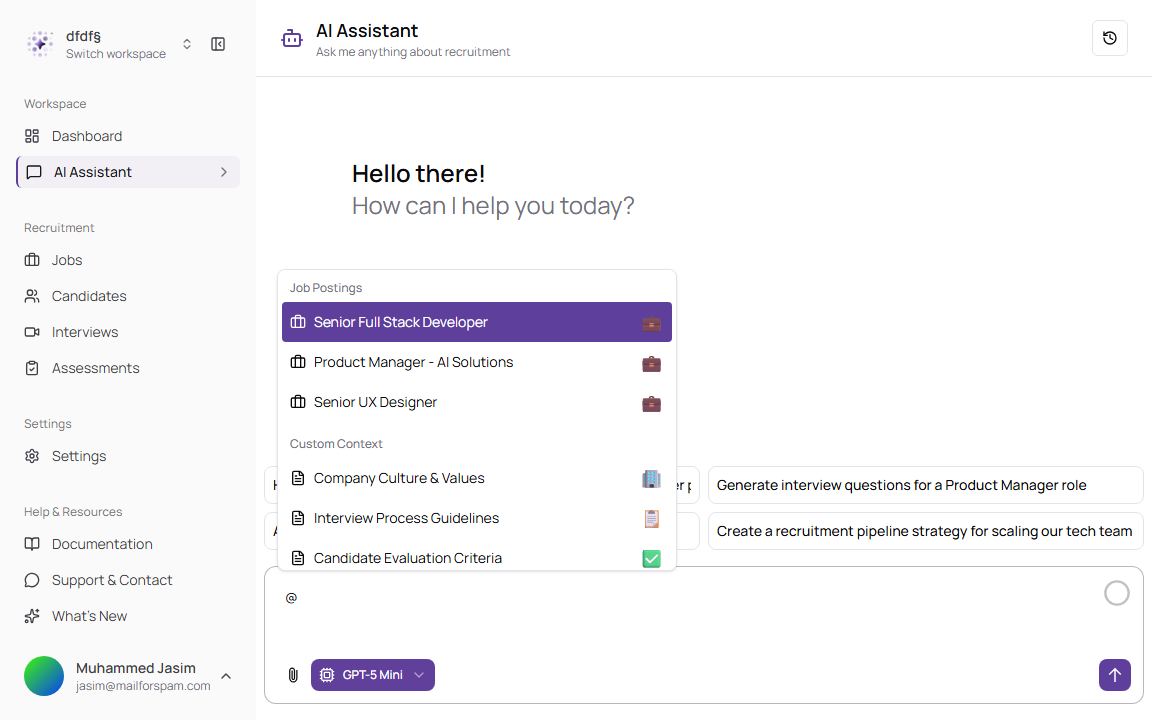
Type @ in the message box to open the context menu. Context tells the assistant what background information to use when answering.
Context Options
| Context group | Description | Examples |
|---|---|---|
| Job Postings | Adds job-specific information so the assistant can tailor the answer to a role. | Senior Full Stack Developer, Product Manager - AI Solutions, Senior UX Designer |
| Custom Context | Adds reusable company or hiring guidance. | Company Culture & Values, Interview Process Guidelines, Candidate Evaluation Criteria, Remote Work Policy |
Mention Behavior
| Action | Description |
|---|---|
Type @ | Opens the full context list. |
Type after @ | Filters context items by name. |
| Select a context item | Adds it as a pill above the message box. |
| Remove a context pill | Removes that context from the next message. |
Choose an AI Model
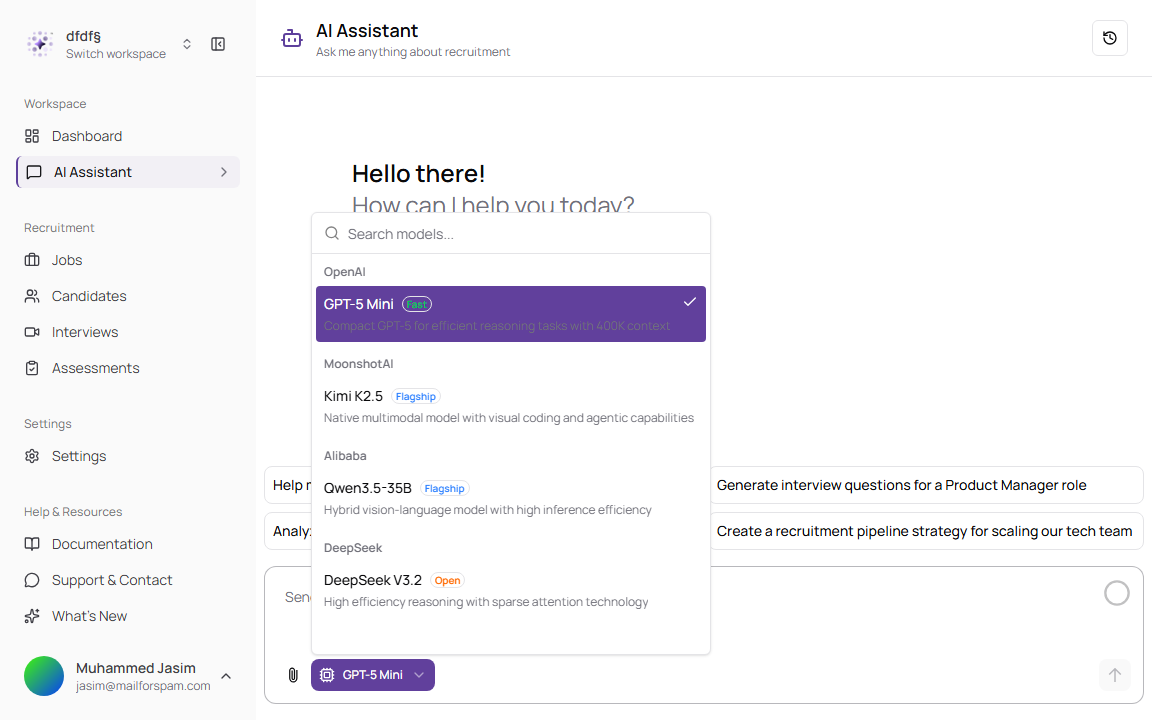
The model selector controls which AI model answers your next message. The selected model is saved for future chat messages.
Available Models
| Model | Provider | Best for |
|---|---|---|
| GPT-5 Mini | OpenAI | Efficient everyday recruitment tasks, drafting, reasoning, and tool use. This is the default model. |
| Kimi K2.5 | MoonshotAI | Multimodal and agentic tasks that need strong visual or structured reasoning. |
| Qwen3.5-35B | Alibaba | Vision-language and tool-based tasks with efficient inference. |
| DeepSeek V3.2 | DeepSeek | Reasoning-heavy and agentic tasks. |
If you are unsure which model to choose, keep GPT-5 Mini selected.
Browse Chat History
Use Chat History to reopen previous conversations. History is useful when you want to continue a hiring task without starting over.
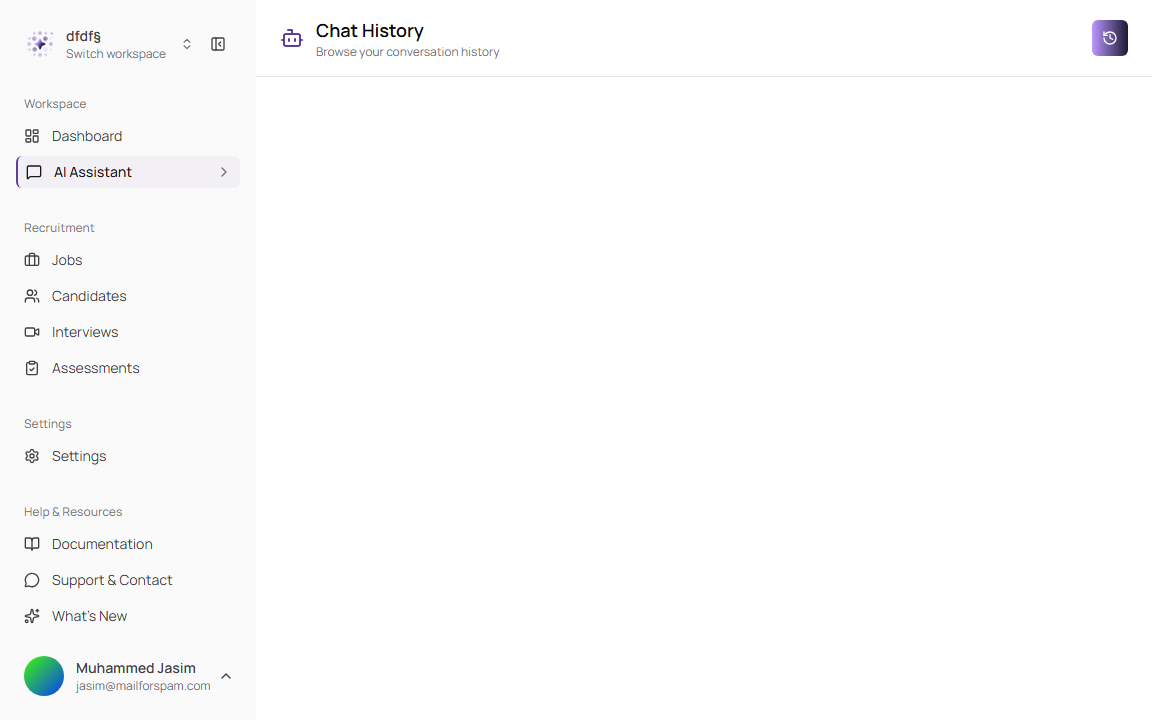
- Click the Chat history icon in the page header.
- Select a conversation from the list.
- Continue the conversation from where it left off.
- Use the back arrow to return from a historical chat to the history view.
History Groups
| Group | Description |
|---|---|
| Today | Conversations created today. |
| Yesterday | Conversations created yesterday. |
| Last 7 days | Conversations from the previous week. |
| Last 30 days | Conversations from the previous month. |
| Older | Conversations older than the last month. |
Private chats are visible only to the user who created them.
Work with Assistant Responses
After the assistant responds, response actions appear near the assistant message.
| Action | Description |
|---|---|
| Copy | Copies the assistant response text to your clipboard. |
| Upvote response | Marks the response as useful. |
| Downvote response | Marks the response as not useful. |
| Regenerate | Creates a new answer for the same prompt when available. |