Candidates
Candidates are the people your team reviews for open roles. Use the Candidates page to search candidate profiles, filter by application status, upload CVs, add candidates manually, and open detailed candidate records.
An application is a candidate’s submission to a specific job. A candidate can have more than one application if they are considered for multiple roles.
What you can do here:
- Search the candidate database.
- Filter candidates by hiring status.
- Review candidate names, emails, locations, skills, and profile links.
- Upload multiple CVs for processing.
- Add a candidate manually.
- Use AI to fill candidate details from a CV.
- Open candidate profiles to review experience, education, applications, assessments, and CVs.
View and Filter Candidates
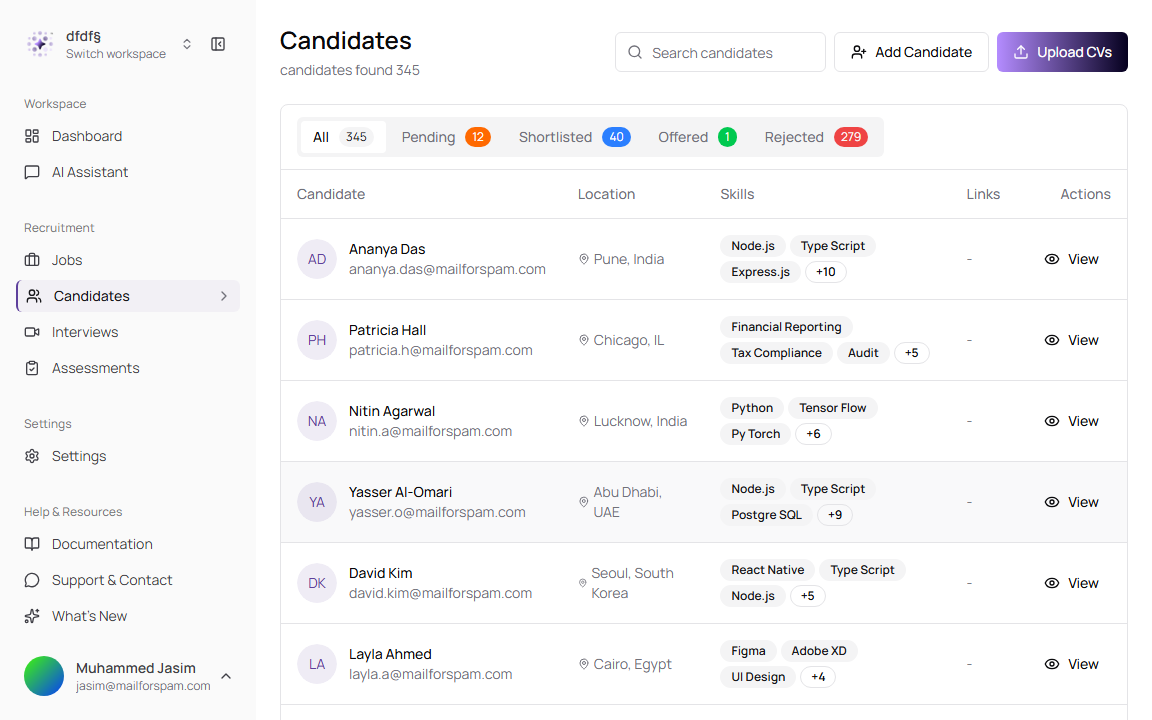
The Candidates list shows candidate profiles in the selected workspace. Use it when you need to find a person, review skills, or open a full candidate record.
- Go to Candidates from the sidebar.
- Use Search candidates to find a candidate by name or related profile text.
- Use the status tabs to filter candidates by application status.
- Use pagination to move between result pages or change how many candidates appear per page.
- Select the candidate name or View to open the candidate details page.
Page Controls
| Control | Description |
|---|---|
| Search candidates | Filters the candidate list. |
| Add Candidate | Opens the manual candidate form. |
| Upload CVs | Opens the bulk CV upload dialog. |
| All | Shows all candidates in the workspace. |
| Pending | Shows candidates with pending applications. |
| Shortlisted | Shows candidates selected to move forward. A shortlist is the group chosen for the next hiring step. |
| Offered | Shows candidates who received an offer. |
| Rejected | Shows candidates rejected from at least one application. |
| Pagination | Moves between pages and controls how many candidates are shown per page. |
List Fields
| Field | Description | Required |
|---|---|---|
| Candidate | Candidate avatar or initials, full name, and email address. Select the name to open the profile. | Yes |
| Location | Candidate location when available. | No |
| Skills | Shows the first few skills on the profile and a count for additional skills. | No |
| Links | Shows portfolio or LinkedIn links when available. | No |
| Actions | Includes View, which opens the candidate details page. | No |
Upload Candidate CVs
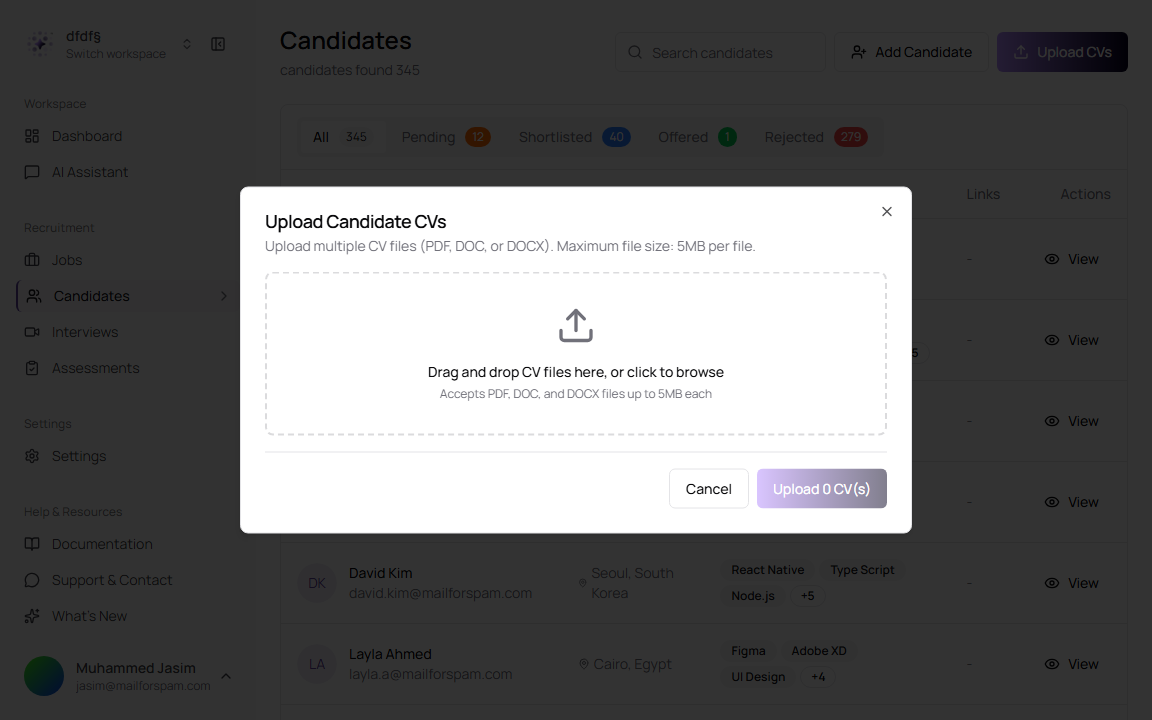
Use Upload CVs when you want TruePick to process one or more resumes and create candidate records from them.
- Go to Candidates.
- Click Upload CVs.
- Drag CV files into the upload area or click to browse.
- Review the selected files.
- Click Upload CV(s).
Upload Fields
| Field | Description | Required |
|---|---|---|
| Upload area | Accepts CV files by drag-and-drop or file picker. | Yes |
| Selected Files | Lists files selected for upload and processing. | No |
| Upload CV(s) | Submits the selected files for processing. | Yes |
The upload dialog accepts PDF, DOC, and DOCX files up to 5MB each.
Add a Candidate Manually
Use Add Candidate when you want to create a candidate profile yourself instead of uploading a CV.
- Go to Candidates.
- Click Add Candidate.
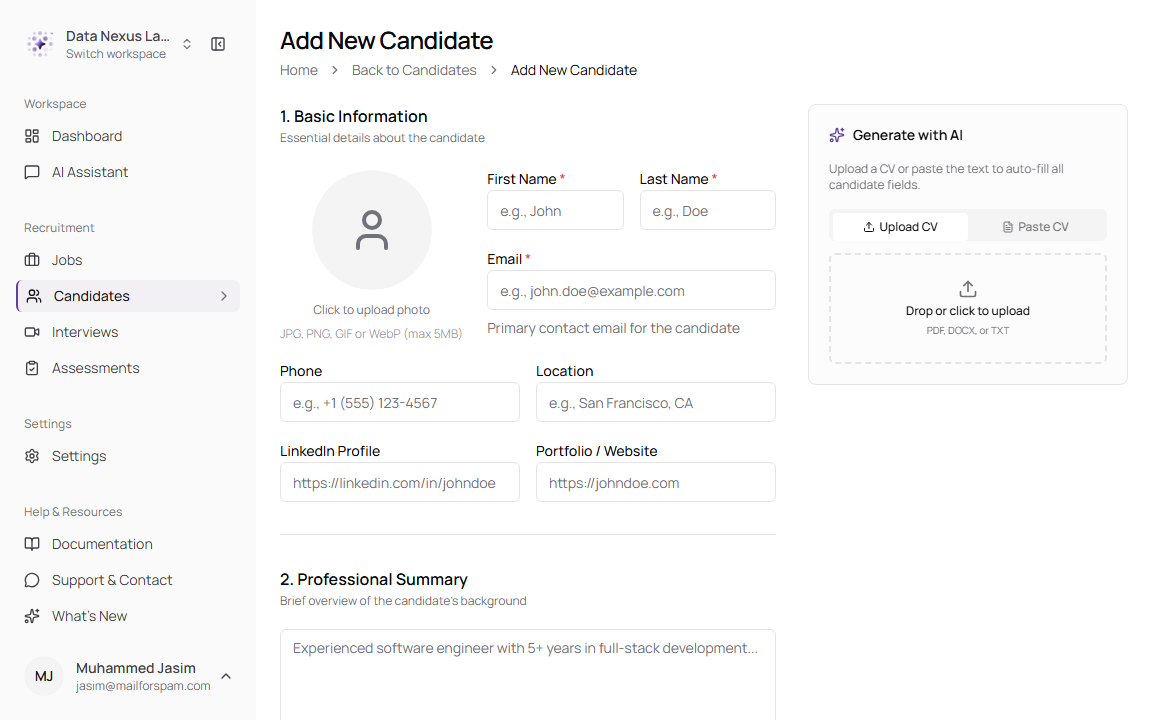
- Complete the required First Name, Last Name, and Email fields.
- Add optional contact details, summary, experience, education, skills, and languages.
- Click Add Candidate.
Basic Information
| Field | Description | Required |
|---|---|---|
| Photo | Uploads a candidate photo. Supported image formats are JPG, PNG, GIF, and WebP up to 5MB. | No |
| First Name | Candidate’s first name. | Yes |
| Last Name | Candidate’s last name. | Yes |
| Primary contact email for the candidate. | Yes | |
| Phone | Candidate phone number. | No |
| Location | Candidate city, country, or preferred work location. | No |
| LinkedIn Profile | Candidate LinkedIn URL. | No |
| Portfolio / Website | Candidate portfolio, personal website, or work sample URL. | No |
Profile Sections
| Section | Description | Required |
|---|---|---|
| Professional Summary | A short overview of the candidate’s background, skills, and career goals. | No |
| Work Experience | Adds role title, company, duration, and description for each past role. | No |
| Education | Adds degree, institution, year, and field of study. | No |
| Skills | Comma-separated skills, such as React, TypeScript, Node.js. | No |
| Languages | Comma-separated languages, such as English, Arabic, Hindi. | No |
Generate with AI
The Generate with AI panel can fill candidate fields from a CV.
| Option | Description |
|---|---|
| Upload CV | Uploads a CV file so AI can extract candidate details. |
| Paste CV | Lets you paste resume text for AI extraction. |
Review AI-filled candidate details before saving. Resume parsing can miss context, formatting, or recent changes.
Review a Candidate Profile
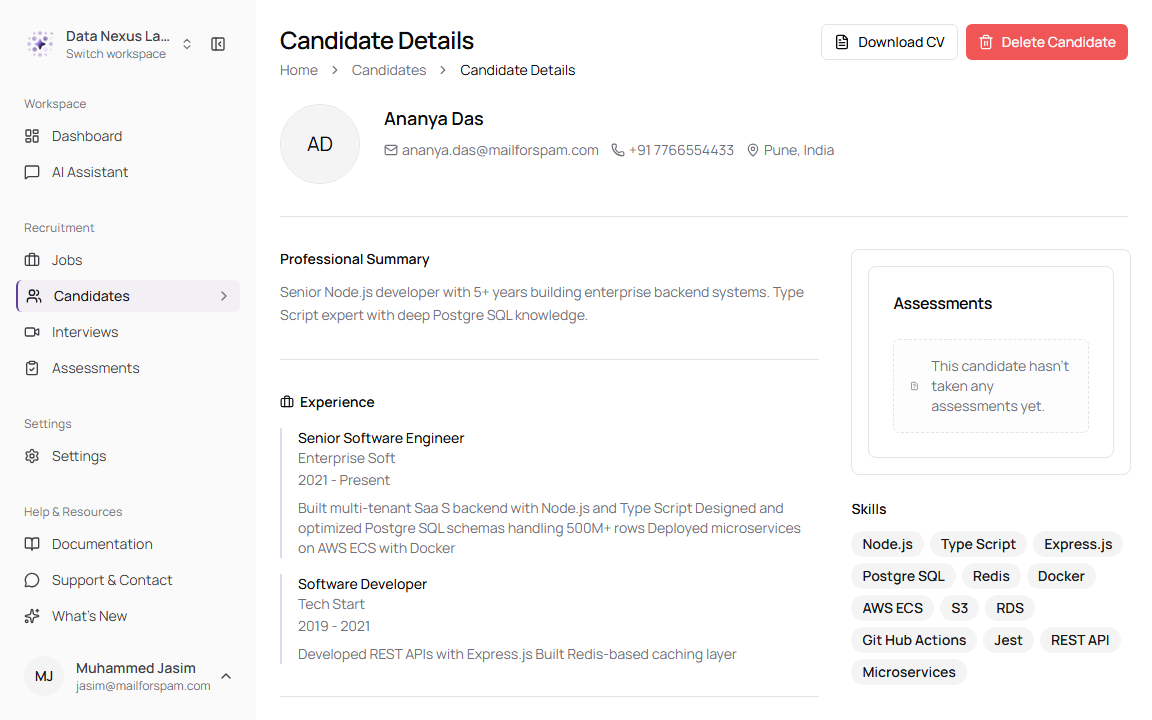
Open a candidate profile when you need to review their background, applications, assessment activity, and CV.
Candidate Details Areas
| Area | Description |
|---|---|
| Header | Shows the candidate name, email, phone number, location, and actions such as Download CV and Delete Candidate. |
| Professional Summary | Candidate background summary. |
| Experience | Work history with title, company, dates, and responsibilities. |
| Education | Education records such as degree, institution, field, and year. |
| Job Applications | Jobs the candidate is connected to, including application date, status, location, and job link. |
| Assessments | Assessment attempts and results when available. |
| Skills | Candidate skills from the profile or parsed CV. |
Job Applications Fields
| Field | Description |
|---|---|
| Job | Job connected to the candidate application. |
| Date | Date the candidate applied or was added. |
| Status | Current application stage, such as Rejected or Shortlisted. |
| Location | Job location. |
| Actions | Opens job-related actions when available. |
A candidate score or match score is an AI-generated rating of how well a candidate fits a job. Use it as a review aid, not as the only hiring decision.